# Additional Linux Commands & Guides

# Small Commands, Issues And Guides - A Collection

<span style="color: rgb(0, 0, 0);">This page is for commands, issues or guides which don't need to be added as a separate page. You can search for them with **Ctrl + F** or click the "Search" at the top.</span>

##### <span style="color: rgb(0, 0, 0);">**Only Allow PublicKey Authentication Overriding Password Auth**</span>

<span style="color: rgb(0, 0, 0);">No idea why, some systems are completely ignorant and ignoring the demand for no password auth.</span>

<span style="color: rgb(0, 0, 0);">Add this line to bottom of SSHD config. No idea why, but the The PA parameter is no and ChallengeResponseAuthentication is also no, but still auths with password... ***sigh.***</span>

<span style="color: rgb(0, 0, 0);">**AuthenticationMethods publickey**</span>

##### <span style="color: rgb(0, 0, 0);">**Give A MongoDB User Permission To Command "mongodump”**</span>

<span style="color: rgb(0, 0, 0);">use admin</span>  
<span style="color: rgb(0, 0, 0);">db.grantRolesToUser( "<span style="color: rgb(186, 55, 42);">**USER**</span>", \[ "readWrite" , { role: "readWrite", db: "config" } \] )</span>

##### **<span style="color: rgb(0, 0, 0);">Remove Apache2/Nginx Python3’s modules for Certbot</span>**

**<span style="color: rgb(0, 0, 0);">Apache2: </span>**<span style="color: rgb(0, 0, 0);">python3-certbot-apache</span>**<span style="color: rgb(0, 0, 0);">  
Nginx: </span>**<span style="color: rgb(0, 0, 0);">python3-certbot-nginx  
</span>

##### <span style="color: rgb(0, 0, 0);">**Remove a package that is being stubborn and will not remove**</span>

<span style="color: rgb(0, 0, 0);">sudo dpkg --force-all -P &lt;package-name-to-remove&gt;</span>

##### **<span style="color: rgb(0, 0, 0);">Absolute headache with MySQL 8.0 mixing with MariaDB’s installs</span>**

<span style="color: rgb(0, 0, 0);">MySQL 8.0 has the config file in <span style="color: rgb(176, 19, 243);">*/etc/mysql/mysql.conf.d/mysqld.cnf*</span> like MariaDB has <span style="color: rgb(176, 19, 243);">*/etc/mysql/mariadb.conf.d/50-server.cnf*</span>.</span>

<span style="color: rgb(0, 0, 0);">**BY DEFAULT** MySQL binds publicly… MariaDB binds to internal localhost.</span>

<span style="color: rgb(0, 0, 0);">Use **mysqld --verbose --help | grep bind** to actually see it bind publicly on first installation…</span>

<span style="color: rgb(0, 0, 0);">If you mix MariaDB’s config files + MySQL’s, it’s not my.cnf, mysql.cnf, the conf.d folder entirely or any other configuration. **It is literally mysqld.cnf in the mysql.conf.d folder.** What utter BS.</span>

##### <span style="color: rgb(0, 0, 0);">**Fixing the repository error for changing it’s “version” for updates**</span>

<span style="color: rgb(0, 0, 0);">**Example:** *N: Repository 'http://deb.debian.org/debian bullseye InRelease' changed its 'Version' value from ‘11.7' to '11.8'*</span>

<span style="color: rgb(0, 0, 0);">**One command:** apt-get --allow-releaseinfo-change update</span>

<span style="color: rgb(0, 0, 0);">**Taken from:** <span style="color: rgb(0, 58, 255);">*[https://www.reddit.com/r/debian/comments/ca3se6/for\_people\_who\_gets\_this\_error\_inrelease\_changed/](https://www.reddit.com/r/debian/comments/ca3se6/for_people_who_gets_this_error_inrelease_changed/)* </span></span>

##### <span style="color: rgb(0, 0, 0);">**The certbot command that actually works to change the email**</span>

<span style="color: rgb(0, 0, 0);">certbot update\_account –email **&lt;email&gt;**</span>

##### <span style="color: rgb(0, 0, 0);">**SlimeWorldManager Installation**</span>

- <span style="color: rgb(0, 0, 0);">Download the latest Spigot/Paper jar you require and pop it into the main directory.</span>
- <span style="color: rgb(0, 0, 0);">Put the slimeworldmanager-plugin-&lt;version&gt;.jar into the same place as the server.jar.</span>
- <span style="color: rgb(0, 0, 0);">Update your startup command to include **-javaagent:&lt;thejar&gt;**, like the below:</span><span style="color: rgb(0, 0, 0);">![](https://jasmeow.pics/yZ16CD.png)</span>

<span style="color: rgb(0, 0, 0);">**Taken from:** <span style="color: rgb(0, 58, 255);">*[https://github.com/cijaaimee/Slime-World-Manager/blob/master/.docs/usage/install.md](https://github.com/cijaaimee/Slime-World-Manager/blob/master/.docs/usage/install.md)*</span></span>

##### <span style="color: rgb(0, 0, 0);">**Crons not running for WHMCS on cPanel - They hang and sit there d<span style="color: rgb(0, 0, 0);">oing nothing</span>**</span>

- <span style="color: rgb(0, 0, 0);">Log into WHM (The admin side of cPanel)</span>
- <span style="color: rgb(0, 0, 0);">Navigate to "*MultiPHP INI Editor*" by searching it on the left hand side.</span>
- <span style="color: rgb(0, 0, 0);">Select the version of PHP that your site uses, using the editor is easier.</span>
- <span style="color: rgb(0, 0, 0);">Increase the following variables:</span>
    - <span style="color: rgb(0, 0, 0);">"max\_execution\_time" - 240/300 should be fine.</span>
    - <span style="color: rgb(0, 0, 0);">"max\_input\_time" - same as above.</span>
    - <span style="color: rgb(0, 0, 0);">"memory\_limit" - Higher than 1024M.</span>
- <span style="color: rgb(0, 0, 0);">Click "*Apply"*</span>
- <span style="color: rgb(0, 0, 0);">Repeat for all versions of PHP that are having a timeout error.</span>
- <span style="color: rgb(0, 0, 0);">Restart cPanel's FPM with systemctl restart ea-php81/82-php-fpm.</span>

<span style="color: rgb(0, 0, 0);">**Taken from:** <span style="color: rgb(0, 58, 255);">*[https://support.cpanel.net/hc/en-us/articles/360052237994-How-to-increase-the-Max-Execution-Time-directive-for-PHP](https://support.cpanel.net/hc/en-us/articles/360052237994-How-to-increase-the-Max-Execution-Time-directive-for-PHP)*</span></span>

##### **<span style="color: rgb(0, 0, 0);">RAID Ubuntu 20.04</span>**

<span style="color: rgb(0, 0, 0);">**Taken from:** *<span style="color: rgb(0, 58, 255);">[https://kifarunix.com/setup-software-raid-on-ubuntu-20-04/](https://kifarunix.com/setup-software-raid-on-ubuntu-20-04/) </span>*</span>

<span style="color: rgb(0, 0, 0);">**Note** - If you get error: *partition length of \[BIGGERSIZE\] sectors exceeds the msdos-partition-table-imposed maximum of \[SMALLERSIZE\]*  
</span>

<span style="color: rgb(0, 0, 0);">**Follow**: <span style="color: rgb(0, 58, 255);">*[https://askubuntu.com/questions/84538/trouble-creating-3tb-ext4-partition-due-to-msdos-partition-table-imposed-error](https://askubuntu.com/questions/84538/trouble-creating-3tb-ext4-partition-due-to-msdos-partition-table-imposed-error)* </span></span>

##### <span style="color: rgb(0, 0, 0);">**Switching RAID 1 to RAID 0**  
</span>

<span style="color: rgb(0, 0, 0);">Scroll down a bit to locate the answer from nmr, which includes removing the mirror, changing, waiting then resizing. </span>

<span style="color: rgb(0, 0, 0);">**Taken From:** *<span style="color: rgb(0, 58, 255);">[https://serverfault.com/questions/915284/is-it-possible-to-convert-raid1-to-raid0-without-system-reinstalation](https://serverfault.com/questions/915284/is-it-possible-to-convert-raid1-to-raid0-without-system-reinstalation)</span>*  
</span>

##### **<span style="color: rgb(0, 0, 0);">Remove .html/.php extension</span>**

<span style="color: rgb(0, 0, 0);">Read the answer from Arnon, the big threaded part with explanations.</span>

<span style="color: rgb(0, 0, 0);"><span style="color: rgb(0, 58, 255);"><span style="color: rgb(0, 0, 0);">**Taken from:**</span> *<span style="color: rgb(0, 58, 255);">[https://stackoverflow.com/questions/38228393/nginx-remove-html-extension](https://stackoverflow.com/questions/38228393/nginx-remove-html-extension)</span>*</span></span>

##### **<span style="color: rgb(0, 0, 0);">Can't run a module or build a NodeJS app due to no such file and has no installation candidate</span>**

![](https://docs.jasmeow.systems/uploads/images/gallery/2024-02/MOKCKeQ0hZzhohh7-embedded-image-zjyajp8h.png)

![](https://docs.jasmeow.systems/uploads/images/gallery/2024-02/Q6vm9H9fOnfjgYTl-embedded-image-zmyppfch.png)

<span style="color: rgb(0, 0, 0);">One simple command to clear out the old NPM packages already downloaded from cache.</span>

**<span style="color: rgb(0, 0, 0);">npm clean-install</span>**

<span style="color: rgb(0, 0, 0);">You can then go about reinstalling with yarn build or another method used.</span>

##### **<span style="color: rgb(0, 0, 0);">Any NPM package doesn't install into /usr/local/bin, such as ghostcms - Updating the prefix location due to weird bug</span>**

<span style="color: rgb(0, 0, 0);">**Taken from:** <span style="color: rgb(0, 58, 255);">[https://askubuntu.com/questions/1102579/using-npm-to-install-file-to-usr-local-bin](https://askubuntu.com/questions/1102579/using-npm-to-install-file-to-usr-local-bin)</span> </span>

<span style="color: rgb(0, 0, 0);">For some weird reason, on some installs of NodeJS and then installing npm, it ends up at /usr and not /usr/local to allow /usr/local/bin packages to be viewable, such as GhostCMS's ghost-cli. Stupid bug, no idea why. Run the set prefix command to fix it, then install Ghost's CLI fine.</span>

<span style="color: rgb(0, 0, 0);">The reason why this needs doing is due to the error "Error: Cannot find module '/usr/local/bin/ghost'" and "MODULE\_NOT\_FOUND" which is absolutely idiotic since you literally just installed it, but in the wrong place. This will happen when trying to start the service and it fails.</span>

```bash
root@S01:/var/www/website.com# npm get prefix
/usr
root@S01:/var/www/website.com# npm config set prefix /usr/local
root@S01:/var/www/website.com# npm get prefix
/usr/local
sudo npm install ghost-cli@latest -g
```

##### **<span style="color: rgb(0, 0, 0);">Date command in linux - Echo and crontab support</span>**

<span style="color: rgb(0, 0, 0);">When using the date command in terminal, if you are echoing the line, you need to make sure you don't escape the percentages as it will include the slashes.</span>

- <span style="color: rgb(0, 0, 0);">echo $(date +"\\%d-\\%m-\\%Y").txt ![](https://jasmeow.pics/k50KLS.png)</span>
- <span style="color: rgb(0, 0, 0);">echo $(date +"%d-%m-%Y").txt ![](https://jasmeow.pics/1Shlbn.png)</span>

<span style="color: rgb(0, 0, 0);">However, when inside crontab, you will need to escape them otherwise cron believes it is an operand and not a variable to pass. And example is below where you also need the path in a full string for it to echo properly and understand the date variable.</span>

- <span style="color: rgb(0, 0, 0);">![](https://jasmeow.pics/kNcTEK.png)</span>
- <span style="color: rgb(0, 0, 0);">![](https://jasmeow.pics/wjcX1M.png)</span>

<span style="color: rgb(0, 0, 0);">You can also use **-d** for naming how we name things, such as "yesterday" "tomorrow" or "2 months ago".</span>

<span style="color: rgb(0, 0, 0);">![](https://jasmeow.pics/z7U83n.png)</span>

- <span style="color: rgb(0, 0, 0);">**Note:** You can also do broken English such as "2 month ago" instead of months!</span>
- <span style="color: rgb(0, 0, 0);">**Taken from:** [https://stackoverflow.com/questions/17015187/how-does-date-d-parse-dates](https://stackoverflow.com/questions/17015187/how-does-date-d-parse-dates)   
    </span>

##### **<span style="color: rgb(0, 0, 0);">List hardware device information for PFSense &amp; FreeBSD OS</span>**

<span style="color: rgb(0, 0, 0);">Command **lshw** does not exist on these platforms, use **pciconf -lv**.</span>**<span style="color: rgb(0, 0, 0);">  
</span>**

![image.png](https://docs.jasmeow.systems/uploads/images/gallery/2025-01/scaled-1680-/h3PWubKQmyry7y5c-image.png)

##### <span style="color: rgb(0, 0, 0);"><span style="color: #000000;">**Qemu Image mounting &amp; commands on normal OS and Ceph installed systems**</span></span>

<span style="color: rgb(0, 0, 0);"><span style="color: #000000;">**Run:** apt install qemu-utils &amp;&amp; modprobe nbd max\_part=8  
**Connect:** qemu-nbd -c /dev/nbd0 a-disk-which-is-formatted-in-qcow2-format.img  
**Disconnect:** qemu-nbd -d /dev/nbd0</span></span>

<span style="color: rgb(0, 0, 0);">**Get information of a image:** qemu-img info a-disk-which-is-formatted-in-qcow2-format.img</span>

<span style="color: rgb(0, 0, 0);">**Converting:**  
qemu-img convert -f qcow2 -O raw image-to-convert.img image-to-get-as-raw.raw  
qemu-img convert -f raw -O qcow2 image-to-convert.raw image-to-get-as-qcow2.img</span>

<p class="callout info"><span style="color: rgb(0, 0, 0);">If disk is an LVM drive (With LVM partitions basically) and cannot be mounted/viewed to get to the root partition, you need to update the LVM configuration file.  
</span>  
**<span style="color: rgb(0, 0, 0);">nano /etc/lvm/lvm.conf</span>**  
<span style="color: rgb(0, 0, 0);">**Replace:** global\_filter=\["r|/dev/zd.\*|","r|/dev/rbd.\*|"\]</span>  
<span style="color: rgb(0, 0, 0);">**With:** global\_filter=\["r|/dev/zd.\*|","a|/dev/rbd.\*|"\]  
  
<span style="text-decoration: underline;">Then complete the following:</span></span>  
<span style="color: rgb(0, 0, 0);">**Run:** pvscan &amp;&amp; lvscan</span>  
<span style="color: rgb(0, 0, 0);">**Then enable with:** vgchange -ay</span>  
<span style="color: rgb(0, 0, 0);">**Run:** mount /dev/&lt;VG\_NAME&gt;/&lt;LV\_NAME&gt; /mnt/&lt;LOCATION&gt;  
  
<span style="text-decoration: underline;">Once you're done using the mounted LVM drive:</span>  
**Run:** vgchange -an &lt;VG\_NAME&gt;  
**IE:** vgchange -an vg0 (Doesn't actually mean now active, it is actually unmounting it #stupidLVM)</span>  
</p>

<span style="color: rgb(0, 0, 0);">**Get ceph pools:** ceph osd pool ls  
**List:** rbd ls &lt;POOL-NAME&gt;  
**Map a drive to be viewed:** rbd map ceph-disk/vm-&lt;ID&gt;-disk-0  
**Remove a mapped drive:** rbd unmap /dev/rbd0  
**Export:** rbd export &lt;POOL-NAME&gt;/vm-&lt;ID&gt;-disk-0 vm-&lt;ID&gt;-disk-0.raw  
**Import:** rbd import &lt;LOCATION&gt; &lt;POOL-NAME&gt;/&lt;IMAGE-NAME&gt;  
</span>

<p class="callout danger"><span style="color: rgb(0, 0, 0);">**Remove image from ceph cluster entirely for that VM (Careful):** rbd remove &lt;POOL-NAME&gt;/vm-&lt;ID&gt;-disk-0  
</span></p>

##### <span style="color: rgb(0, 0, 0);"><span style="color: #000000;">**Get into an OS that is stuck on the Grub boot window** </span></span>

<p class="callout warning"><span style="color: rgb(0, 0, 0);"><span style="color: #000000;">This section **only** applies if you knew the **OS booted before**, but now doesn't work. This is probably because you moved a virtual machine between hosts and/or software, like raw to qcow2, or from VirtFusion/Standalone to Proxmox, etc.  
  
You might need to boot into gparted to potentially grab the vmlinuz images to boot off of (what their names are and mount the drive, ls them, etc, **BUT** you might be able to do **ls** inside of your grub after setting the root=. (Such as set root=(hd0) then ls)  
  
set root=(hd0)  
linux /boot/vmlinuz-x.x.x-amd64 root=/dev/&lt;DRIVE&gt; ro  
initrd /boot/initrd.img-x.x.x-amd64  
boot  
  
**EXAMPLE:**  
set root=(hd0)  
linux /boot/vmlinuz-5.10.0-33-amd64 root=/dev/sda ro  
initrd /boot/initrd.img-5.10.0-33-amd64  
boot  
  
Running the "boot" command will make it freeze, wait up to 1 minute as it will glitch out and finally boot into normal OS. You can then repair grub with *update-grub*/*update-initramfs -u -k all*, etc.  
</span></span></p>

##### <span style="color: #000000;">**Fix syncing of MySQL servers not syncing when both master &amp; slave** </span>

<span style="color: #000000;">Run this on server 2:</span>

```mssql
STOP SLAVE;

CHANGE MASTER TO
MASTER_HOST='MYSQL-01.abc.com',
MASTER_USER='<username>',
MASTER_PASSWORD='<password>',
MASTER_LOG_FILE='mysql-bin.000001', -- from MYSQL-01 "SHOW MASTER STATUS;"
MASTER_LOG_POS=753, -- from MYSQL-01 "SHOW MASTER STATUS;"
MASTER_SSL=1,
MASTER_SSL_CA='/etc/mysql/ssl/ca-cert.pem',
MASTER_SSL_CERT='/etc/mysql/ssl/server-cert.pem',
MASTER_SSL_KEY='/etc/mysql/ssl/server-key.pem';
START SLAVE;
```

<span style="color: #000000;">Run this on server 1:</span>

```mysql
STOP SLAVE;

CHANGE MASTER TO
MASTER_HOST='MYSQL-02.abc.com',
MASTER_USER='<username>',
MASTER_PASSWORD='<password>',
MASTER_LOG_FILE='mysql-bin.000003', -- from MYSQL-02 "SHOW MASTER STATUS;"
MASTER_LOG_POS=157, -- from MYSQL-02 "SHOW MASTER STATUS;"
MASTER_SSL=1,
MASTER_SSL_CA='/etc/mysql/ssl/ca-cert.pem',
MASTER_SSL_CERT='/etc/mysql/ssl/server-cert.pem',
MASTER_SSL_KEY='/etc/mysql/ssl/server-key.pem';
START SLAVE;
```

##### <span style="color: #000000;">**When running "mysql" command in terminal, login prompts for password.**</span>

<span style="color: #000000;">This happens due to the password being modified for the root user, such as breaking into it from networking only mode, or from transferring the "mysql" database which houses the user logins. You need to make the root user login with "unix\_socket" to be able to just simply run "mysql" in terminal without a password again using the following command:</span>

```bash
ALTER USER 'root'@'localhost' IDENTIFIED WITH unix_socket;
```

# Juniper Switching CLI & J-Web - A Collection

<span style="color: rgb(0, 0, 0);">This page is for the Juniper Switching CLI or J-</span><span style="color: rgb(0, 0, 0);">Web interfaces which don't all need separate pages. You can search for them with **Ctrl + F** or click the "Search" at the top.</span>

<span style="color: rgb(0, 0, 0);">**The terminology used in this documentation is listed below:**</span>  
<span style="color: rgb(0, 0, 0);">•  **Run** – Run the command and press enter. No other interaction needed. No output will appear.</span>  
<span style="color: rgb(0, 0, 0);">• **Type** – Type a word, most of the time being Boolean (yes/no, true/false).</span>

##### **<span style="color: rgb(0, 0, 0);">Configuring Virtual Chassis EX Series</span>**  


<span style="color: rgb(132, 63, 161);">***Taken from:** [https://www.juniper.net/documentation/us/en/software/junos/virtual-chassis-qfx/topics/concept/virtual-chassis-ex4200-overview.html#understanding-ex-series-virtual-chassis\_\_d2126e1405](https://www.juniper.net/documentation/us/en/software/junos/virtual-chassis-qfx/topics/concept/virtual-chassis-ex4200-overview.html#understanding-ex-series-virtual-chassis__d2126e1405)* </span>

**<span style="color: rgb(0, 0, 0);">Sadly, this takes you to a PDF and you need to use Wayback machine to get the snapshot of: </span>**  
<span style="color: rgb(0, 58, 255);">*https://web.archive.org/web/20231201042147/https://www.juniper.net/documentation/us/en/software/junos/virtual-chassis-ex-4200-4500/topics/task/virtual-chassis-ex4200-cli.html* </span>

##### **<span style="color: rgb(0, 0, 0);">Enabling J-Web Interface</span>**

<span style="color: rgb(0, 0, 0);">Connect the COM cable or use the IP address of the system and SSH to it. Login as normal.</span>

<span style="color: rgb(0, 0, 0);">Run **cli**</span>  
<span style="color: rgb(0, 0, 0);">Run **edit**</span>  
<span style="color: rgb(0, 0, 0);">Run **delete interfaces**</span>  
<span style="color: rgb(0, 0, 0);">Run **set interfaces vlan.0 family inet address 192.192.0.x**</span>  
*<span style="color: rgb(0, 0, 0);">(replacing x with the end IP for the management interface)</span>*  
<span style="color: rgb(0, 0, 0);">Run **commit**</span>  
<span style="color: rgb(0, 0, 0);">Wait for synchronization to complete.</span>

<span style="color: rgb(0, 0, 0);">**Description:** We have removed all interfaces and configured the **vlan.0** interface to **192.192.0.x**, x being the end of the switches management IP address temporarily. Without this being set, the switch will complain that no interfaces have been configured for vlan.0.</span>

<span style="color: rgb(176, 19, 243);">***Taken from:** <span style="color: rgb(176, 19, 243);">[https://supportportal.juniper.net/s/article/Interface-must-already-be-defined-under-edit-interfaces-commit-error?language=en\_US](https://supportportal.juniper.net/s/article/Interface-must-already-be-defined-under-edit-interfaces-commit-error?language=en_US) </span>*</span>

<span style="color: rgb(0, 0, 0);">Run **set interfaces vme unit 0 family inet address 192.168.0.x/&lt;subnet&gt;**</span>  
*<span style="color: rgb(0, 0, 0);">(replacing x with the IP for management interface, the vme IP)</span>*

<span style="color: rgb(0, 0, 0);">Run **set system services ssh root-login allow**</span>  
<span style="color: rgb(0, 0, 0);">Run **set system services web-management management-url 192.168.0.x/root**</span>  
*<span style="color: rgb(0, 0, 0);">(replacing x with the IP for management interface web portal, same as the vme IP set earlier)</span>*

<span style="color: rgb(0, 0, 0);">Run **set system services web-management http interface vme**</span>  
<span style="color: rgb(0, 0, 0);">Run **set system services web-management https port 443**</span>  
<span style="color: rgb(0, 0, 0);">Run **set system services web-management https system-generated-certificate**</span>  
<span style="color: rgb(0, 0, 0);">Run **set system services web-management https interface vme**</span>  
<span style="color: rgb(0, 0, 0);">Run **commit**</span>  
<span style="color: rgb(0, 0, 0);">Wait for synchronization to complete.</span>

<span style="color: rgb(0, 0, 0);">**Description:** We have updated the management interface, J-Web, to show the webpage instead of “Connection Refused”. This is believed to be happening because of it binding the interface to me0, not vme, which is the virtual chassis interface. Citation Needed.</span>

##### **<span style="color: rgb(0, 0, 0);">Switching Between Primary Master &amp; Backup Switches</span>**

<span style="color: rgb(0, 0, 0);">Connect the COM cable or use the IP address of the system and SSH to it. Login as normal.</span>  
<span style="color: rgb(176, 19, 243);">***Taken from:*** *https://www.juniper.net/documentation/us/en/software/junos/cli-reference/topics/ref/command/request-chassis-routing-engine-master.html* </span>

<span style="color: rgb(0, 0, 0);">Run **cli**</span>  
<span style="color: rgb(0, 0, 0);">Run **request chassis routing-engine master switch**</span>  
<span style="color: rgb(0, 0, 0);">Type **yes**</span>

<span style="color: rgb(0, 0, 0);">You will be disconnected after about 1-2 seconds on the switch you are connected on (either master or backup) and you will need to wait around 5 minutes before issuing this command again.</span>

##### **<span style="color: rgb(0, 0, 0);">Save Time With Making Synchronize Default</span>**  


<span style="color: rgb(0, 0, 0);">This section allows you to set the command commit to always run commit synchronize without you needing to write that word afterwards.</span>  
<span style="color: rgb(0, 0, 0);">Connect the COM cable or use the IP address of the system and SSH to it. Login as normal.</span>

<span style="color: rgb(0, 0, 0);">Run **cli**</span>  
<span style="color: rgb(0, 0, 0);">Run **edit**</span>  
<span style="color: rgb(0, 0, 0);">Run **set system commit synchronize**</span>  
<span style="color: rgb(0, 0, 0);">Run **commit synchronize**</span>

<span style="color: rgb(0, 0, 0);">On next command run of commit, it will run commit synchronize. This should be visibly apparent that it worked as you will see fpc0 and fpc1 sync along the left when committing between them when in virtual-chassis mode.</span>

##### **<span style="color: rgb(0, 0, 0);">Switching ROM On Switch</span>**

<span style="color: rgb(0, 0, 0);">Connect the COM cable to the switch you wish to switch ROM on. This is good for getting to a different firmware version if it decided to downgrade due to not being the same, configuration resync or getting back from Linecard to Master/Backup due to version issue.</span>

<span style="color: rgb(0, 0, 0);">**Note:** Due to the command **request session member X**, a COM cable isn’t required.</span>

<span style="color: rgb(0, 0, 0);">Run **request system reboot slice alternate media internal**</span>  
<span style="color: rgb(0, 0, 0);">Type **yes**</span>

<span style="color: rgb(0, 0, 0);">Wait for switch to restart. This will countdown on 60 seconds, 30 seconds and immediately, respectively.</span>

##### **<span style="color: rgb(0, 0, 0);">Syncing Current ROM With Redundant ROM</span>**

<span style="color: rgb(0, 0, 0);">SSH or connect the COM cable and run the command below to sync the current system configuration and OS version to the redundant ROM **AND** between both the fpc0 and fpc1.</span>

<span style="color: rgb(0, 0, 0);">Run **cli**</span>  
<span style="color: rgb(0, 0, 0);">Run **edit**</span>  
<span style="color: rgb(0, 0, 0);">Run **run request system snapshot slice alternate**</span>

##### **<span style="color: rgb(0, 0, 0);">Get Full System Info From Both Switches (Virtual Chassis)</span>**

<span style="color: rgb(0, 0, 0);">Obtain the system information from both switches such as the state, temperature, memory and CPU usage, model, serial number and last reboot reason. </span>

<span style="color: rgb(0, 0, 0);">Run **cli**</span>  
<span style="color: rgb(0, 0, 0);">Run **show chassis routing-engine**</span>

##### **<span style="color: rgb(0, 0, 0);">Login To Alternative Switch In CLI Mode For Logs/Configuration</span>**

<span style="color: rgb(0, 0, 0);">To get into an additional member of the virtual chassis, you can run the below command to access it instead of running the switch routing-engine command. For example, member 0 is top switch, member 1 is bottom switch if running in a 2 system virtual-chassis. Replace X with the switch member number. For locating the number, you can Run show virtual-chassis to view member numbers.  
</span>

<span style="color: rgb(0, 0, 0);">Run **cli**</span>  
<span style="color: rgb(0, 0, 0);">Run **request session member x**</span>

##### <span style="color: rgb(0, 0, 0);">**Enabling SNMP v3 on Juniper 4200/4500 switches**</span>  


```markdown
set snmp v3 vacm security-to-group security-model usm security-name <USERNAME> group read-only-group
set snmp v3 vacm access group read-only-group default-context-prefix security-model usm security-level privacy read-view read-only-view
commit comment "Preparation For SNMPv3"

set snmp v3 usm local-engine user <USERNAME> authentication-sha authentication-password "<CRYPTO_PASSWORD>"
set snmp v3 usm local-engine user <USERNAME> privacy-aes128 privacy-password "<PASSWORD>"
set snmp view read-only-view oid .1 include
show snmp
commit comment "Setup SNMPv3 For <APPLICATION>"
```

<p class="callout info"><span style="color: rgb(0, 0, 0);">For TenantOS, the settings to select are below:  
  
![](https://jasmeow.pics/NvnjOC.png)  
</span></p>

##### **<span style="color: rgb(0, 0, 0);">Setup Syslog to an endpoint IP listening for Syslog data</span>**  


```markdown
set system syslog host <IP> any any
set system syslog file messages any any
commit comment "Activate Syslog Data Collection"
```

##### <span style="color: #000000;">**Installing LLDPD to get data from the port connected and query the switch**</span>

<span style="color: rgb(0, 0, 0);">Using this will tell you all the connection information from the switch, such as what port, what the switch name is, vlans it's providing to you, etc.</span>  
  
<span style="color: rgb(0, 0, 0);">apt install lldpd -y &amp;&amp; /</span>  
<span style="color: rgb(0, 0, 0);">lldpctl  
</span>

##### <span style="color: #000000;">**Need to rename a VLAN on the switch and need to find out which members are in that VLAN so you can delete it safely?** </span>

<span style="color: #000000;">This can also be used to prepare who has duplicate VLAN names such as "ClientVlan" and "Vlan.3" basically meaning, it has the named version of vlan 3 and the numerical version. Running this command helps you clear out those "named vlan" problems which originate by making the vlans on the JWeb interface before being comfortable with CLI. This will then give you the chance to rename a vlan later on with rename vlan command, etc.</span>

```markdown
cli -c "show configuration interfaces | display set" | grep "family ethernet-switching vlan members <VLAN>" | awk '{print "delete", $2, $3, $4, $5, $6, $7, "vlan members <VLAN>"}' > /var/tmp/<VLAN>.conf

```

<span style="color: #000000;">  
</span>

# Transferring server data between two dedicated systems - Wget & Python3

<span style="color: rgb(0, 0, 0);">The easiest way to transfer a tarball or zip file from one dedicated system to another is by using wget and a python3 webserver, protected from sending out the data from UFW allow in only that IP address or using the internal network if your system has it, such as OVH's vSwitch/vRack system.</span>

<span style="color: rgb(0, 0, 0);">Open up SSH. In this example, we will be using Pterodactyl's UUID's in the volumes folder, but this also applies to any zip/tarball you want to do this on such as servers stored in /home or /srv.</span>

<span style="color: rgb(0, 0, 0);">Go to `cd /var/lib/pterodactyl/volumes` and then do `ls` to see the containers.</span>

<span style="color: rgb(0, 0, 0);">[![image.png](https://docs.jasmeow.systems/uploads/images/gallery/2023-07/scaled-1680-/cf74gzeURhMtnqOy-image.png)](https://docs.jasmeow.systems/uploads/images/gallery/2023-07/cf74gzeURhMtnqOy-image.png)</span>

<span style="color: rgb(0, 0, 0);">We will use "031d5..." as an example. Run `tar -zcvf SERVERNAME.tgz 031d5` then press tab to autofill the entire server ID.</span>

<span style="color: rgb(0, 0, 0);">[![image.png](https://docs.jasmeow.systems/uploads/images/gallery/2023-07/scaled-1680-/OfJGsUCQpDnu1pao-image.png)](https://docs.jasmeow.systems/uploads/images/gallery/2023-07/OfJGsUCQpDnu1pao-image.png)</span>

<span style="color: rgb(0, 0, 0);">Let it finish tarballing. You'll know when it's finished as the output stops showing you what files it's archived and goes back to the normal terminal line waiting input.</span>

<span style="color: rgb(0, 0, 0);">[![image.png](https://docs.jasmeow.systems/uploads/images/gallery/2023-07/scaled-1680-/QSdkXS9u2tn68c4Z-image.png)](https://docs.jasmeow.systems/uploads/images/gallery/2023-07/QSdkXS9u2tn68c4Z-image.png)</span>

<span style="color: rgb(0, 0, 0);">Do `ip a` on your destination system and find the public IP. Remember, some systems have internal networking so you might be able to do "`wget 10.10.10.1:8000/hub.tgz`" for example instead of the public IP and whitelisting it, as it normally is already whitelisted. </span>

<span style="color: rgb(0, 0, 0);">![](https://jasmeow.pics/eFyVpA.png)</span>

<span style="color: rgb(0, 0, 0);">Once you've found either the public or the private IP, go back onto your source system and type `ufw allow from x.x.x.x` changing the x's to your IP.</span>

<span style="color: rgb(0, 0, 0);">![](https://jasmeow.pics/uWV0tX.png)</span>

<span style="color: rgb(0, 0, 0);">You can now type `ip a` on your source system to get its IP you need.</span>

<span style="color: rgb(0, 0, 0);">![](https://jasmeow.pics/kpMDWw.png)</span>

<span style="color: rgb(0, 0, 0);">On your source system, now type `python3 -m http.server` to start up a temporary HTTP server on port 8000 for WGet to pull from. If the port is already in use and errors out, type the port after the command, as shown below.</span>

<span style="color: rgb(0, 0, 0);">[![](https://jasmeow.pics/9BaTof.png) ](https://docs.jasmeow.systems/uploads/images/gallery/2023-07/m5mAQZmARsOrD3jX-image.png)[![image.png](https://docs.jasmeow.systems/uploads/images/gallery/2023-07/scaled-1680-/EJVS7baTjpbZ9T1Q-image.png)](https://docs.jasmeow.systems/uploads/images/gallery/2023-07/EJVS7baTjpbZ9T1Q-image.png)</span>

<span style="color: rgb(0, 0, 0);">Go to your destination system and go to a folder you want to import into, such as making a directory called /import then going into it. Run `wget x.x.x.x:PORT/FILENAME.tgz`, replacing the x's with your public or private IP, the PORT with the port it opened and the FILENAME with the tarball name.</span>

<span style="color: rgb(0, 0, 0);">![](https://jasmeow.pics/wAChY5.png)</span>

<span style="color: rgb(0, 0, 0);">You will see a progress bar with it transferring over. Once it's done, it will go back to the normal terminal line.</span>

<span style="color: rgb(0, 0, 0);">![](https://jasmeow.pics/yM8ldX.png)</span>

<span style="color: rgb(0, 0, 0);">You can now go back to the source system and "Ctrl + C" to exit out of the webserver.</span>

<span style="color: rgb(0, 0, 0);">[![image.png](https://docs.jasmeow.systems/uploads/images/gallery/2023-07/scaled-1680-/vLJSKg5QXpTISBAc-image.png)](https://docs.jasmeow.systems/uploads/images/gallery/2023-07/vLJSKg5QXpTISBAc-image.png)</span>

<span style="color: rgb(0, 0, 0);">On your destination system, you can now do what you need to do on your tarball, such as move it to another place, extract it with `tar -xvf FILENAME.tgz` and more.</span>

[![image.png](https://docs.jasmeow.systems/uploads/images/gallery/2023-07/scaled-1680-/ZxdwL4ZpWuorrz2s-image.png)](https://docs.jasmeow.systems/uploads/images/gallery/2023-07/ZxdwL4ZpWuorrz2s-image.png)

<span style="color: rgb(0, 0, 0);">If the transfer was successful and the extraction also was successful, make sure you go onto the old source system and delete the old tarball, you don't want to fill up on disk space.</span>

[![image.png](https://docs.jasmeow.systems/uploads/images/gallery/2023-07/scaled-1680-/oRC04WJ3deb0xog0-image.png)](https://docs.jasmeow.systems/uploads/images/gallery/2023-07/oRC04WJ3deb0xog0-image.png)

# Cannot Access UDP Connected Games Due To OVH Firewall

<span style="color: rgb(0, 0, 0);">If you have purchased an OVH system from one of their "GAME" series, such as the GAME-1, GAME-2 or the GAME-LE-x servers, you will need to login to their interface to disable the UDP firewall called the "Game Firewall" as this will block connections such as Minecraft Geyser.</span>

<p class="callout info"><span style="color: rgb(0, 0, 0);">This guide presumes that you've checked multiple port open sites and they all state closed, you checked and confirmed the port is open on the firewall internally on UFW or the IPTables rules and if running the Pterodactyl panel, you've confirmed that the port is assigned to the server itself and rebooted the container to confirm working.</span></p>

<span style="color: rgb(0, 0, 0);">Login to your OVH account and click the "Bare Metal Cloud" in the top left, click "Network" along the left hand sidebar then "IP" under the dropdown.</span>

<span style="color: rgb(0, 0, 0);">![image.png](https://docs.jasmeow.systems/uploads/images/gallery/2023-11/scaled-1680-/8hVw97bB2hOgys46-image.png) ![](https://jasmeow.pics/MwupIs.png) ![](https://jasmeow.pics/fpzcaC.png) </span>

<span style="color: rgb(0, 0, 0);">In the list, find your server IP and click the three dots on the right and click "Configure the GAME firewall". If you are unsure which server it is, click the blue text of the IP and it will jump you to that server to confirm it is the one you want to configure.</span>

<span style="color: rgb(0, 0, 0);">![](https://jasmeow.pics/OvLWsm.png)</span>

<span style="color: rgb(0, 0, 0);">![](https://jasmeow.pics/tmFKQd.png)</span>

<span style="color: rgb(0, 0, 0);">All you now need to do is click "Deactivating the restriction" along the top bar. </span>

<span style="color: rgb(0, 0, 0);">![](https://jasmeow.pics/HJsBwA.png)</span>

<span style="color: #000000;">Wait about 2-5 minutes and it should be off. You are now able to connect to that IP with ports broadcasting UDP traffic, like Minecraft Geyser. If it still doesn't work, do it again, as in enabling and disabling it. It's super temperamental and needs it to happen more than 60% of the time!</span>

# Accessing A Website Or Control Panel Shows "Too Many Redirects" Error

<span style="color: rgb(0, 0, 0);">If you see this error:</span>

<span style="color: rgb(0, 0, 0);">![](https://jasmeow.pics/viC4WN.png)</span>

<span style="color: rgb(0, 0, 0);">Go to CloudFlare and click your domain.</span>

<span style="color: rgb(0, 0, 0);">![](https://jasmeow.pics/Uz7pcB.png)</span>

<span style="color: rgb(0, 0, 0);">On the left hand side, expand SSL/TLS then click on "Overview".</span>

<span style="color: rgb(0, 0, 0);">![](https://jasmeow.pics/pz79T6.png)</span>

<span style="color: rgb(0, 0, 0);">Set the SSL/TLS encryption mode to "Full" instead of "Flexible".</span>

<span style="color: rgb(0, 0, 0);">![](https://jasmeow.pics/oH2GyU.gif)</span>

<span style="color: rgb(0, 0, 0);">Wait about 30 seconds for the change to propagate, then you should be able to access it again.</span>

# Error 1014 Tebex - CNAME Cross-User Banned

<span style="color: rgb(0, 0, 0);">If you are ever presented with the following below when trying to access your Tebex store using your own custom domain, such as <span style="color: rgb(0, 139, 255);">[https://store.vanillaplus.uk](https://store.vanillaplus.uk)</span>, this means you need to **renewal your Plus plan.**</span>

<span style="color: rgb(0, 0, 0);">![](https://jasmeow.pics/o0lXW2.png)</span>

<span style="color: rgb(0, 0, 0);">You haven't been banned or suspended by CloudFlare, even though the word "banned" appears. What this means in simple terms is when Tebex tries to redirect from your custom domain to the actual store link, they stop that redirection because you haven't renewed your "Plus" plan, so the CNAME becomes "Banned" to stop the "hop" from your custom domain to *abc123abc123.tebex.io* (The CNAME you made).</span>

<span style="color: rgb(0, 0, 0);">Hopefully this provides more context. All you need to do is go and pay. After about 5-10 minutes, the error disappears.</span>

# Why Is X Not Installed On The System - How Docker Images Work

<span style="color: rgb(0, 0, 0);">When connecting to your systems via SSH, you may notice that certain applications don't exist, are not installed or not working as they should be. This is due to how docker works and it's image system.</span>

<span style="color: rgb(0, 0, 0);">If you are a client who has Pterodactyl installed, servers are managed in containers, which are managed by the software called "Docker". Each server is contained in a container, simply referred to as a "house." Those little houses live together to run anything you wish to in their own little "building". They can't talk to other "houses" (*Unless internal, 172.18.0.1 or your own subnet)*, they can't interact with them, they can't touch them, they are **separate**. They can run a magnitude of software such as Java, NodeJS, Python, SteamCMD, the list goes on. Now, these are managed with **docker images**. Images are released by many users online to help streamline the process of running a certain application. For example, let's take a java one from Pterodactyl's repository on GHCR:</span>

- <span style="color: rgb(0, 0, 0);">ghcr.io/pterodactyl/yolks:java\_17</span>

<span style="color: rgb(0, 0, 0);">What we can see here is that it's using the website **ghcr.io**, which is where people can share and publish docker images. Next up is **/pterodactyl**, which is the author of the images, then **java\_17**, meaning that Java 17 will be installed into that **container** when deployed. Deploying means that you've gone to your panel, created a server, selected Java 17 as the image, and the "house" gets "built." Using this analogy should hopefully now make sense. **Nothing** is installed on the **root** level, **doesn't touch** the system whatsoever and doesn't interfere with **other** houses.</span>

<span style="color: rgb(0, 0, 0);">This means that when you run **java --version**, **node -v** or other such command, it won't show anything up unless we installed that application at some point for testing or development. Any questions, ask the team.</span>

# PHP Extensions Locations For .so Files

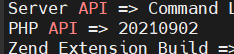
<span style="color: rgb(0, 0, 0);">PHP stores its .so extension files in /usr/lib/php/ then the API version of PHP. For ease of use, they have been listed here as they are not listed on any site.</span>

- <span style="color: rgb(0, 0, 0);">**PHP 8.0:** 20200930</span>
- <span style="color: rgb(0, 0, 0);">**PHP 8.1:** 20210902</span>
- <span style="color: rgb(0, 0, 0);">**PHP 8.2:** 20220829</span>

<span style="color: rgb(0, 0, 0);">If you need it and you can't find it, run **php -i | grep API** and you will see the API number:</span>

![image.png](https://docs.jasmeow.systems/uploads/images/gallery/2023-11/scaled-1680-/i4iI7HWZWTBB5749-image.png)

# Installing Modules On cPanel For WHMCS - IonCube, FileInfo & Soap

<span style="text-decoration: underline; color: rgb(0, 0, 0);">**IonCube**</span>

- <span style="color: rgb(0, 0, 0);">Go to <span style="color: rgb(176, 19, 243);">*/opt/cpanel/ea-php81/root/usr/lib64/php/modules*</span> **(PHP 8.1)** and unzip the tar you download from [<span style="color: rgb(0, 58, 255);">here</span>](https://downloads.ioncube.com/loader_downloads/ioncube_loaders_lin_x86-64.tar.gz) with the .so file. (The loaders from their website)</span>
- <span style="color: rgb(0, 0, 0);">Then in <span style="color: rgb(176, 19, 243);">*/opt/cpanel/ea-php81/root/etc/php.d*</span> **(PHP 8.1)** put **nano 00-ioncube.ini** and put in <span style="color: rgb(0, 139, 255);">*zend\_extension = /opt/cpanel/ea-php81/root/usr/lib64/php/modules/ioncube\_loader\_lin\_8.1.so*</span></span>
- <span style="color: rgb(0, 0, 0);">Once done, you need to **systemctl restart ea-php81-php-fpm**.</span>

<span style="color: rgb(0, 0, 0);"><span style="text-decoration: underline;">**<span style="color: #000000;">Soap</span>**</span></span>

- <span style="color: rgb(0, 0, 0);">Copy the **soap.so** file from a normal PHP-8.1 install in the location <span style="color: rgb(176, 19, 243);">*/usr/lib/php/20210902*</span> **(PHP 8.1)** and put it into <span style="color: rgb(176, 19, 243);">*/opt/cpanel/ea-php81/root/usr/lib64/php/modules*</span> **(PHP 8.1)**.</span>
- <span style="color: rgb(0, 0, 0);">Then in <span style="color: rgb(176, 19, 243);">*/opt/cpanel/ea-php81/root/etc/php.d*</span> **(PHP 8.1)** put **nano 00-soap.ini** and put in <span style="color: rgb(0, 139, 255);">*extension=soap.so*</span></span>
- <span style="color: rgb(0, 0, 0);">Once done, you need to **systemctl restart ea-php81-php-fpm**.</span>

<span style="text-decoration: underline; color: rgb(0, 0, 0);">**FileInfo**</span>

- <span style="color: rgb(0, 0, 0);">Login to WHM (Not cPanel client side, WHM's admin side).</span>
- <span style="color: rgb(0, 0, 0);">Search for "Software" along the left side and find "EasyApache4".</span>
- <span style="color: rgb(0, 0, 0);">Click the button that says Customize next to Currently Installed Packages.</span>
- <span style="color: rgb(0, 0, 0);">Click PHP Extensions along the left hand side in blue (3rd option down).</span>
- <span style="color: rgb(0, 0, 0);">Search for Fileinfo in the search bar in the top left and click the toggle on the PHP-8.1 version.</span>
- <span style="color: rgb(0, 0, 0);">Click Review.</span>
- <span style="color: rgb(0, 0, 0);">After looking over the proposed changes, scroll to the bottom of the screen and click provision.</span>
- <span style="color: rgb(0, 0, 0);">Once done, you need to **systemctl restart ea-php81-php-fpm** in terminal.</span>

<span style="color: rgb(0, 0, 0);">***Referenced from:** <span style="color: rgb(0, 58, 255);">[https://support.cpanel.net/hc/en-us/articles/1500000107181-How-do-I-install-Fileinfo-](https://support.cpanel.net/hc/en-us/articles/1500000107181-How-do-I-install-Fileinfo-) </span>*</span>

**<span style="color: rgb(0, 0, 0);">If you wish to install extensions for a user of cPanel but don't want to install these extensions globally, follow:</span>**

- <span style="color: rgb(0, 0, 0);">**Example below is for soap extension**</span>
- <span style="color: rgb(0, 0, 0);">Go into that user with su in terminal or use the cPanel’s terminal page.</span>
- <span style="color: rgb(0, 0, 0);">Run **pear**, this will give you results. Run **pear install Archive\_Tar** to install tar.</span>
- <span style="color: rgb(0, 0, 0);">Run **pear install PEAR** to install Pear required for SOAP to install. ***Ironic. Lmfao***. </span>
- <span style="color: rgb(0, 0, 0);">Run **pear install soap** then install using the channel link. </span>
- <span style="color: rgb(0, 0, 0);">**Note**: You might need to use **--force** on some of the commands as the tar version of 1.4.14 breaks soap install.</span>

---

<span style="color: rgb(0, 0, 0);">**Note:** On all instances above, you can restart Apache's FPM in the WHM interface instead of the command by searching "Services" in the top left then finding "Apache FPM".</span>

# LiteSpeed WebServer With Pterodactyl (CyberPanel)

<span style="color: rgb(0, 0, 0);">Setup main domain then “panel” as another subdomain. During the subdomain creation, make the location of the files **/panel/public**. Pull files from this directory back one into **/panel** and make sure Ptero's **/public** is the folder that CyberPanel is pointing to for it's VHost - This tricks CyberPanel into loading it.</span>

<span style="color: #000000;">Remember it's a laravel app, so you still need to install composer, run the composer install, sort out the database connections, fix the initial permissions from the Ptero docs, install redis and sort the pteroq service (including wings if adding it onto this system).</span>

<span style="color: rgb(0, 0, 0);">If you get error 500, click fix permissions in file location **/panel** and **/panel/public** in the CyberPanel files interface along the top.</span>

<span style="color: rgb(0, 0, 0);">Set **.htaccess** rules in the rewrite section of CyberPanel with:</span>

```html
RewriteEngine On
RewriteBase /
RewriteRule ^/index.php$ - [L]
RewriteCond %{REQUEST_FILENAME} !-f
RewriteCond %{REQUEST_FILENAME} !-d
RewriteRule . /index.php [L]
```

<span style="color: rgb(0, 0, 0);">**Note:** If not added, the panel will just 404 as it cannot redirect .php files to friendly URL’s.</span>

<span style="color: rgb(0, 0, 0);">For wings, it will fail since firewalld is blocking the ports. Go and open the ports in **/etc/firewalld/zones/public.xml** and update the public zone. Then **systemctl restart firewalld**. You can also do this in the Firewall page of CyberPanel along the left hand side.</span>

# Searching Through Files - Finding A Particular String And Updating It

<span style="color: rgb(0, 0, 0);">**Main command: <span style="color: rgb(176, 19, 243);">grep -rnw "xA" -e "xB" | xargs sed -i 's/xC/xD/'</span>**</span>

- <span style="color: rgb(0, 0, 0);">**g**</span><span style="color: rgb(0, 0, 0);">**rep** – Obvious, search to find results.</span>
- <span style="color: rgb(0, 0, 0);">**-rnw** – Search all directories after string definition.</span>
- <span style="color: rgb(0, 0, 0);">**“xA”** – Location to search.</span>
- <span style="color: rgb(0, 0, 0);">**“xB”** – String to search. **Has to be in quotations!**</span>
- <span style="color: rgb(0, 0, 0);">**|** - Pipe, put results from grep into sed.</span>
- <span style="color: rgb(0, 0, 0);">**xargs** – Call on argument from result.</span>
- <span style="color: rgb(0, 0, 0);">**sed** – Replace.</span>
- <span style="color: rgb(0, 0, 0);">**'s/xC/xD/'** – Replace string xC with xD.</span>

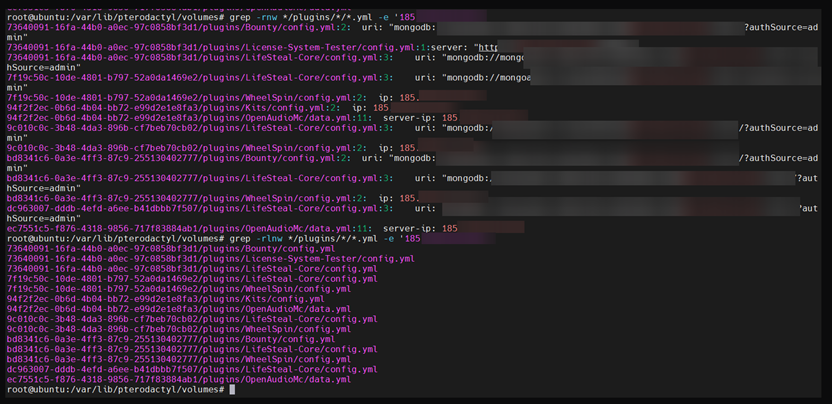
<span style="color: rgb(0, 0, 0);">If you see on the example below, you would use the grep command up to the pipe symbol first without **-l**, then add it in afterwards. </span><span style="color: rgb(0, 0, 0);">This is used **after** searching for strings. The letter **L** is for grep’ing just the directory location where it finds the result and not actually showing file contents.</span>

<p class="callout warning"><span style="color: rgb(0, 0, 0);">**SED WILL NOT** work if you do not add **-l** into the **-rlnw**. It has to require the absolute paths and not anything else it outputs.</span></p>

<span style="color: rgb(0, 0, 0);">![](https://docs.jasmeow.systems/uploads/images/gallery/2024-02/Z4GEhq4VDVv9YVEA-embedded-image-rtsxtvqx.png)</span>

<span style="text-decoration: underline;"><span style="color: rgb(0, 0, 0); text-decoration: underline;">**An Example**</span></span>

<span style="color: rgb(0, 0, 0);">Searching through LuckPerms configs in all servers to replace connection timeout string.</span>

*<span style="color: rgb(0, 0, 0);">grep -rlnw "connection-timeout: 5000" \*/plugins/LuckPerms | xargs sed -i 's/connection-timeout: 5000/connection-timeout: 20000/'</span>*

# Installing SQLite3 To SQL with Python3 Package To Convert SQL-Lite DB to MySQL for import

<span style="color: rgb(0, 0, 0);">Start off with **pip3 install sqlite3-to-mysql**, making sure **apt install python3-pip** is installed. Once done, upgrade pip3 with **pip3 install --upgrade pip** then **pip3 install packaging**. You can now run **sqlite3mysql --help**.</span>

<span style="color: rgb(0, 0, 0);">For simple syntax, it is:</span>  
**<span style="color: rgb(0, 0, 0);">sqlite3mysql -f &lt;file-of-sqllitedb.db&gt; -d &lt;database-to-import-to&gt; -u &lt;sql-user-to-import-with&gt; -p</span>**

<span style="color: rgb(0, 0, 0);">When I tried using -u root, it didn’t work and said access denied even with correct password. Use a SQL user which has access to that particular database or a global admin. *No idea why.*</span>

<span style="color: rgb(0, 0, 0);">Works fairly well and have had no reports of issues.</span>

**<span style="color: rgb(0, 0, 0);">An example below:</span>**

<span style="color: rgb(0, 0, 0);">![](https://docs.jasmeow.systems/uploads/images/gallery/2024-02/fy0hobRMbkUIv0pn-embedded-image-krrsbnrr.png)</span>

# ItemsAdder With CloudFlare Proxied Domain For IP Protection

- <span style="color: rgb(0, 0, 0);">Create a proxy pass for the domain and add to CloudFlare.</span>
- <span style="color: rgb(0, 0, 0);">Cert it with LetsEncrypt and give the port to the server on the panel, like 20000. </span>
- <span style="color: rgb(0, 0, 0);">Update ItemsAdder with the details below and make all the other "host" types false.</span>
- <span style="color: rgb(0, 0, 0);">This texture pack option should fully deploy automatically, and the game should recognise it.</span>
- <span style="color: rgb(0, 0, 0);">If it doesn’t, open the MC log and see if it “Times out”, if it does, you’ve done a configuration wrong!</span>

```yaml
    self-host:
      enabled: true
      server-ip: https://texturepack.domain.com
      pack-port: 20000
      append-port: false
```

![](https://jasmeow.pics/jNZcYi.png)

# Get the “/dev/disk/by-id” information for FSTab from the udevadm command

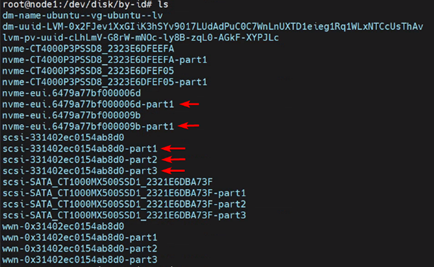
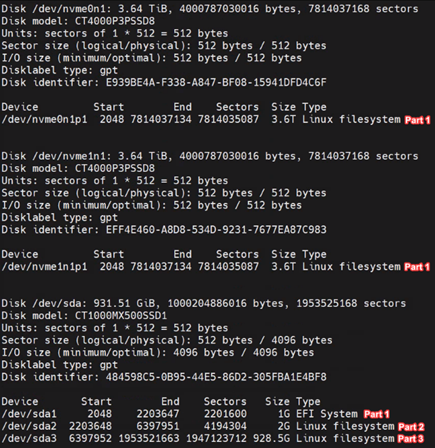
<span style="color: rgb(0, 0, 0);">To start with, you will need to use the disk name **only** without the partition name. When you go into <span style="color: rgb(176, 19, 243);">*/dev/disk/by-id*</span> and investigate the names, it will be named “part-1, part-2” etc at the end of the ID name. Ignore these for now. Do <span style="color: rgb(176, 19, 243);">fdisk -l <span style="color: rgb(0, 0, 0);">and get the disk name.</span></span></span>

<span style="color: rgb(0, 0, 0);"><span style="color: rgb(176, 19, 243);"><span style="color: rgb(0, 0, 0);">![](https://jasmeow.pics/0VCNxq.png)</span></span></span>

<span style="color: rgb(0, 0, 0);"><span style="color: rgb(176, 19, 243);"><span style="color: rgb(0, 0, 0);">Run the below command:</span></span></span>

**<span style="color: rgb(0, 0, 0);">udevadm info -q symlink --path=/sys/block/&lt;DRIVE-NAME&gt; | awk '{print "/dev/" $1}'</span>**

<span style="color: rgb(0, 0, 0);">![](https://jasmeow.pics/azSWlG.png)</span>

<span style="color: rgb(0, 0, 0);">![](https://jasmeow.pics/XTPz9Z.png)</span>

<span style="color: rgb(0, 0, 0);">Repeat this command until you have **“nvme-eui.ID”** or **"sci-ID"** as the first time you run it, it may list the **“by-path/”** statement which isn't helpful or the actual **“by-id/DISKNAME”** which is what we want.</span>

<span style="color: rgb(0, 0, 0);">Once you've found the ID, go to <span style="color: rgb(176, 19, 243);">/dev/disk/by-id</span> and look for the partition you want from <span style="color: rgb(176, 19, 243);">fdisk -l<span style="color: rgb(0, 0, 0);">. Use this to correlate the lists together. </span></span></span>

![image.png](https://docs.jasmeow.systems/uploads/images/gallery/2024-02/scaled-1680-/r39EluaSegeI8dZU-image.png)

<span style="color: rgb(0, 0, 0);">![](https://docs.jasmeow.systems/uploads/images/gallery/2024-02/AGeeWrARRPjsfLxp-embedded-image-mxmwsm0f.png)</span>

<span style="color: rgb(0, 0, 0);">For example, <span style="color: rgb(176, 19, 243);">/dev/sda3</span> is going to be **"part-3"** from the ID list.</span>

<span style="color: rgb(0, 0, 0);">![](https://docs.jasmeow.systems/uploads/images/gallery/2024-02/PoT5pP6m0COVpb2N-embedded-image-urxhwn2b.png)</span>

<p class="callout danger"><span style="color: rgb(0, 0, 0);">**DO NOT IGNORE THIS WARNING. IT IS CRUCIAL TO READ.  
  
Note:** Make sure you set the drive to ext4 before rebooting so it actually knows how to handle the partition. If you don't, the partition won't actually mount and when you reboot you will get put into **initramfs**, so have rescue mode on standby with a KVM!  

  
</span><span style="color: rgb(0, 0, 0);">![8c1d2ab5-69a4-4d2d-994b-a751b425dbf2.png](https://docs.jasmeow.systems/uploads/images/gallery/2024-02/scaled-1680-/vg4U7vkGtiX8JxTX-8c1d2ab5-69a4-4d2d-994b-a751b425dbf2.png)</span></p>

<span style="color: rgb(0, 0, 0);">Go into nano <span style="color: rgb(176, 19, 243);">/etc/fstab</span> and add the <span style="color: rgb(176, 19, 243);">/dev/disk/by-id/IDNAME-PARTX</span> into the FSTab. Example below for **nvme0n1p1’s part 1**, **the partition for the datastore**, **ext4**, **defaults**, 0, **1**.</span>

<span style="color: rgb(0, 0, 0);">![](https://docs.jasmeow.systems/uploads/images/gallery/2024-02/51ftFIpRCn9O1Oux-embedded-image-rbokhzc3.png)</span>

# Resizing single volume group and logical volume after disk expansion

<span style="color: rgb(0, 0, 0);">This guide is used after cloning to a increased size disk such as 500GB to 1TB, or by having some space left over from installing the OS, such as the rest of the disk but only 50GB allocated to the / partition.</span>

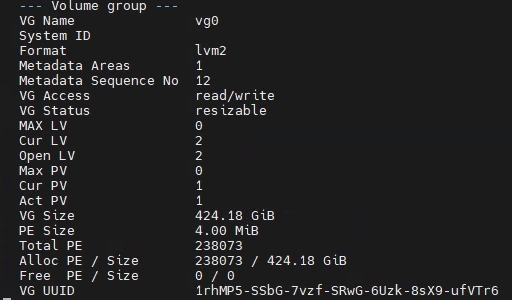
<span style="color: rgb(0, 0, 0);">Firstly run **vgdisplay** to get the volume group information.</span>

<span style="color: rgb(0, 0, 0);">![image.png](https://docs.jasmeow.systems/uploads/images/gallery/2024-07/scaled-1680-/MILmvwCKugkmEAa6-image.png)</span>

<span style="color: rgb(0, 0, 0);">Run **lsblk** and notice that the size of the partition on the disk **and** the volume group is 424G, not the 931.5G. </span>

<span style="color: rgb(0, 0, 0);">**Note:** *After resizing, it will be a bit smaller than the disk as the other partitions take it up, so around 926G at the end*</span>

<span style="color: rgb(0, 0, 0);">![](https://jasmeow.pics/C38l0R.png)</span>

<span style="color: rgb(0, 0, 0);">Let's add the rest of the free space to the partition first. Run **cfdisk /dev/nvme#n1**, replacing hashtag with drive number. No need for a partition here as we need to do changes on the disk itself.</span>

<span style="color: rgb(0, 0, 0);">*I should have an image here of CF Disk at some point when I have a free size again.*</span>

<span style="color: rgb(0, 0, 0);">Go down to partition 3 (Or where your logical volumes are stored for expansion) and chose "Resize". Just put in the amount you wish to add to that partition (which is presumably max), then write it.</span>

<span style="color: rgb(0, 0, 0);">![](https://jasmeow.pics/kelbgd.png) ![](https://jasmeow.pics/mvA8FT.png)</span>

<span style="color: rgb(0, 0, 0);">![](https://jasmeow.pics/uomXUb.png)</span>

<span style="color: rgb(0, 0, 0);">Once you've done this, run **pvresize /dev/nvme#n1p#**, replacing both the hashtags respectively.</span>

<span style="color: rgb(0, 0, 0);">![](https://jasmeow.pics/qCQU31.png)</span>

<span style="color: rgb(0, 0, 0);">Next run **lvextend -l +100%FREE /dev/vg#/LOCATION**, replacing the hashtag with the volume group number, normally vg0, and location with the mountpoint name, normally "root". An example:</span>

<span style="color: rgb(0, 0, 0);">*This will say resized. I don't have an image currently of this.*</span>

<span style="color: rgb(0, 0, 0);">![image.png](https://docs.jasmeow.systems/uploads/images/gallery/2024-07/scaled-1680-/1HrlYsBJKkXEBJNv-image.png)</span>

<span style="color: rgb(0, 0, 0);">Once done, run **resize2fs /dev/vg#/LOCATION**, replacing the values again with the relevant fields.</span>

<span style="color: rgb(0, 0, 0);">*This will say "online sizing required" and resize.*</span>

<span style="color: rgb(0, 0, 0);">![](https://jasmeow.pics/OKYkSg.png)</span>

<span style="color: rgb(0, 0, 0);">Run **df -h** and **lsblk** to confirm resizing.</span>

<span style="color: rgb(0, 0, 0);">![](https://jasmeow.pics/1EOJw9.png)![](https://jasmeow.pics/iGUZHt.png)</span>

# Resizing a logical group then volume within a parented RAID number

*<span style="color: rgb(0, 0, 0);">Taken from<span style="color: rgb(176, 19, 243);"> [https://packetpushers.net/blog/ubuntu-extend-your-default-lvm-space/](https://packetpushers.net/blog/ubuntu-extend-your-default-lvm-space/) </span></span>*

<span style="color: rgb(0, 0, 0);">Run **cat /proc/mdstat** - Get the RAID partition you want to update after doing all the resize commands to switch from Raid 1 to Raid 0.</span>

<span style="color: rgb(0, 0, 0);">*Taken from* <span style="color: rgb(176, 19, 243);">*[https://serverfault.com/questions/915284/is-it-possible-to-convert-raid1-to-raid0-without-system-reinstalation](https://serverfault.com/questions/915284/is-it-possible-to-convert-raid1-to-raid0-without-system-reinstalation)* </span></span>

<span style="color: rgb(0, 0, 0);">![](https://jasmeow.pics/zKcMud.png)</span>

<span style="color: rgb(0, 0, 0);">![image.png](https://docs.jasmeow.systems/uploads/images/gallery/2024-06/scaled-1680-/TFyoKZlv9IqONhzc-image.png)</span>

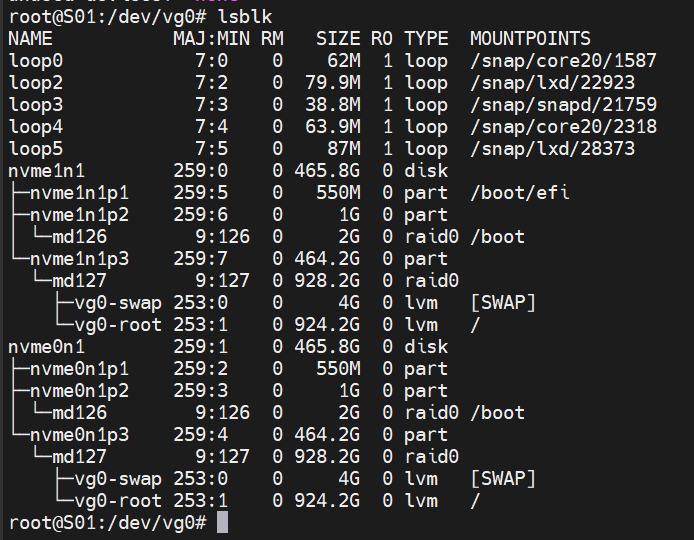
<span style="color: rgb(0, 0, 0);">Next, get the partition info which should look like this with **lsblk**:</span>

<span style="color: rgb(0, 0, 0);">![image.png](https://docs.jasmeow.systems/uploads/images/gallery/2024-06/scaled-1680-/3lGV284Pt3pG0euh-image.png)</span>

<p class="callout info"><span style="color: rgb(0, 0, 0);">Notice how **vg0-root** and **vg0-swap** are sitting on on both disks **partition 3** parented under RAID mdadm **md127**? This is what we will be working on.</span></p>

<span style="color: rgb(0, 0, 0);">Run vgdisplay - Get **V**olume **G**roup name and the path, in this case will be "/dev/vg0/xxx". Sometimes it is "/dev/mapper/ubuntu–vg-ubuntu–lv", different on how the OS was installed.</span>

<span style="color: rgb(0, 0, 0);">![image.png](https://docs.jasmeow.systems/uploads/images/gallery/2024-06/scaled-1680-/cGO0WkeWn4Afh61G-image.png)</span>

<p class="callout info align-center"><span style="color: rgb(0, 0, 0);">Increasing the size now comes in 3 steps</span></p>

<span style="color: rgb(0, 0, 0);">1. We now need to physically resize the volume of the mdadm RAID by doing **pvresize /dev/RAID#** as shown below:</span>

<span style="color: rgb(0, 0, 0);">![image.png](https://docs.jasmeow.systems/uploads/images/gallery/2024-06/scaled-1680-/nZdZTwqV3oPeQBfV-image.png)</span>

<span style="color: rgb(0, 0, 0);">2. Expand the **L**ogical **V**olume by running **lvextend -l +100%FREE /dev/VGNAME/LVNAME**. We worked out the **VGNAME** was **vg0** and we worked out the **LVNAME** is **root** from **lsblk** - this showed us **vg0-root**. It should be successful.</span>

<span style="color: rgb(0, 0, 0);">![image.png](https://docs.jasmeow.systems/uploads/images/gallery/2024-06/scaled-1680-/LZSgCJm3RUzHHmck-image.png)</span>

<span style="color: rgb(0, 0, 0);">3. Your final stage is doing the typical **resize2fs /dev/VGNAME/LVNAME**. You do **NOT** do it on the mdadm **RAID#**, as this will just fail with not finding the superblock:</span>

<span style="color: rgb(0, 0, 0);">![image.png](https://docs.jasmeow.systems/uploads/images/gallery/2024-06/scaled-1680-/JQ8JugBB632Cwttv-image.png)![image.png](https://docs.jasmeow.systems/uploads/images/gallery/2024-06/scaled-1680-/HBCoGSrAdNxHLN9n-image.png)</span>

<span style="color: rgb(0, 0, 0);">Check with **df -h**, and you will see it has been resized successfully:</span>

<span style="color: rgb(0, 0, 0);">![image.png](https://docs.jasmeow.systems/uploads/images/gallery/2024-06/scaled-1680-/z1uPPdszmcdhjkKT-image.png)</span>

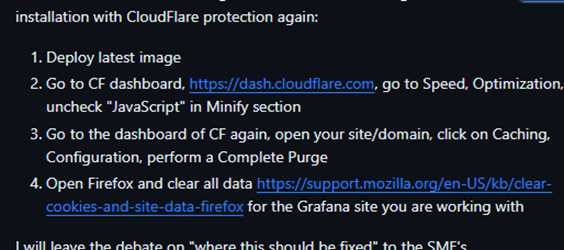
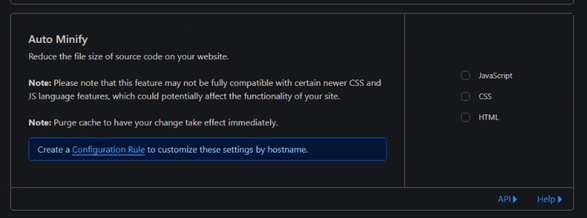
# CloudFlare does not minify javascript correctly when working with Grafana

<span style="color: rgb(0, 0, 0);">[![671244d4-7564-41d2-875d-503ac657a372.png](https://docs.jasmeow.systems/uploads/images/gallery/2024-02/scaled-1680-/75AumMxBYlS4UIe6-671244d4-7564-41d2-875d-503ac657a372.png)](https://docs.jasmeow.systems/uploads/images/gallery/2024-02/75AumMxBYlS4UIe6-671244d4-7564-41d2-875d-503ac657a372.png)</span>

<span style="color: rgb(0, 0, 0);">Speed &gt; Optimisation &gt; Content Optimisation.</span>

<span style="color: rgb(0, 0, 0);">![](https://docs.jasmeow.systems/uploads/images/gallery/2024-02/lkOqFszfXv4pyCGC-embedded-image-jpfubq6k.png)</span>

<span style="color: rgb(0, 0, 0);">Follow the below if you want to disable JavaScript Minify'ing for **just that** website, not the whole domain:</span>

![](https://jasmeow.pics/2ckeDY.png)

# Install Custom Version Of MySQL Server

<p class="callout danger"><span style="color: rgb(0, 0, 0);">In this guide, replace **.27** with what version you need. At time of writing, Version **.37** is now out, but **on** and **after** **.29** breaks games such as Unturned with their charsets.</span></p>

<span style="color: rgb(0, 0, 0);">To begin, download the bundle.</span>

```bash
wget https://dev.mysql.com/get/Downloads/MySQL-8.0/mysql-server_8.0.27-1ubuntu20.04_amd64.deb-bundle.tar
```

<span style="color: rgb(0, 0, 0);">Extract it.</span>

```bash
tar -xf mysql-server_8.0.27-1ubuntu20.04_amd64.deb-bundle.tar
```

<span style="color: rgb(0, 0, 0);">Install LibSSL otherwise it will fail.</span>

```bash
wget http://archive.ubuntu.com/ubuntu/pool/main/o/openssl/libssl1.1_1.1.1f-1ubuntu2_amd64.deb
sudo dpkg -i libssl1.1_1.1.1f-1ubuntu2_amd64.deb
```

<span style="color: rgb(0, 0, 0);">Install Libaio1 <span style="color: rgb(0, 58, 255);">*(Lol - AIO* 😋*)*</span> otherwise it will fail.</span>

```bash
wget http://archive.ubuntu.com/ubuntu/pool/main/liba/libaio/libaio1_0.3.110-5_amd64.deb
sudo dpkg -i libaio1_0.3.110-5_amd64.deb
```

<span style="color: rgb(0, 0, 0);">Install MySQL common.</span>

```bash
dpkg -i mysql-common_8.0.27-1ubuntu20.04_amd64.deb
```

<p class="callout warning"><span style="color: rgb(0, 0, 0);"> Without the above being done, it errors out stating it needs MySQL common. If you try to include the package (*./mysql-common....*) with *apt install*, this fails due to it being the "last" package it installs and fails to understand when to install it.</span></p>

<span style="color: rgb(0, 0, 0);">Finally, install MySQL.</span>

```bash
apt install --yes --no-install-recommends ./mysql-community-client_8.0.27-1ubuntu20.04_amd64.deb ./mysql-community-client-core_8.0.27-1ubuntu20.04_amd64.deb ./mysql-community-client-plugins_8.0.27-1ubuntu20.04_amd64.deb ./mysql-server_8.0.27-1ubuntu20.04_amd64.deb ./mysql-community-server_8.0.27-1ubuntu20.04_amd64.deb ./mysql-client_8.0.27-1ubuntu20.04_amd64.deb ./mysql-community-server-core_8.0.27-1ubuntu20.04_amd64.deb
```

<span style="color: rgb(0, 0, 0);">Enter root password for password authentication or leave blank to just run **mysql** and login with terminal.![](https://jasmeow.pics/Yr7s6G.png)</span>

<span style="color: rgb(0, 0, 0);">Choose "Use Strong Password...", as you won't be needing 5.x compatibility. ![](https://jasmeow.pics/lYfPWX.png)</span>

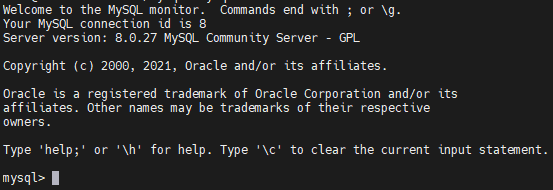
<span style="color: #000000;">Complete. Run **mysql**.</span>

![image.png](https://docs.jasmeow.systems/uploads/images/gallery/2024-06/scaled-1680-/zpmLuPuLvfSeUslC-image.png)

# Networking With Hetzner - With and Without additional MAC's configured

<span style="color: rgb(0, 0, 0);">IP's have been redacted in this configuration but you can evaluate based on your operations.</span>

<p class="callout info"><span style="color: rgb(0, 0, 0);">With doing this in debian, reverting over to netplan and disabling networking has been so much easier. ChatGPT and other help articles from stack overflow has been a major help in understanding networking as a whole. **systemctl stop networking &amp;&amp; systemctl disable networking**. Install netplan.io with **apt install netplan.io**.  
  
Configure it then **reboot** the system. **Do not** presume it will work unless you restart.</span></p>

<span style="color: rgb(0, 0, 0);">If you just need the netplan configuration:</span>

```bash
network:
  version: 2
  renderer: networkd
  ethernets:
    enp41s0: # Network interface name from "ip a".
      dhcp4: no  # Turn off DHCP.
      addresses:
        - 148.x.x.242/29  # IP Address 1 with subnet.
        - 144.x.x.121/27  # IP Address 2 with subnet.
      gateway4: 148.x.x.241  # The gateway of the first subnet.
      nameservers:
        addresses:
          - 8.8.4.4 # Obvious enough.
          - 8.8.8.8 # Obvious enough.
      routes:
        - to: 144.x.x.96/27 # The "Identifier IP" for the subnet. The one before the gateway and two before the first usable.
          via: 144.x.x.97 # The gateway of this subnet.
          metric: 100 # The higher the metric, the lower it is in priority (Yes, stupid) - It means if 240 fails, it will make 144 prioritized.
```

<span style="color: rgb(0, 0, 0);">If you need to specify MAC addresses:</span>

```bash
network:
  version: 2
  renderer: networkd
  ethernets:
    enp41s0: # Network interface name from "ip a".
      dhcp4: no # Turn off DHCP.
      addresses:
        - 148.x.x.242/29 # IP Address 1 with subnet.
        - 144.x.x.121/27 # IP Address 2 with subnet.
      macaddress: xx:xx:xx:xx:xx:xx  # Specify the MAC address for 148.x.x.242 ONLY (It has to route somewhere for remaining traffic).
      routes:
        - to: 144.x.x.96/27 # The "Identifier IP" for the subnet. The one before the gateway and two before the first usable.
          via: 144.x.x.97 # The gateway of this subnet.
          metric: 100 # The higher the metric, the lower it is in priority (Yes, stupid) - It means if 240 fails, it will make 144 prioritized.
        - to: 148.x.x.240/29 # The "Identifier IP" for the subnet. The one before the gateway and two before the first usable.
          via: 148.x.x.241 # The gateway of this subnet.
          metric: 0 # The higher the metric, the lower it is in priority (Yes, stupid) - Not applicable here - 0 meaning normal priority.

-----------------------------------------------------------------------------------------------
    # If using multiple interfaces, add them here with their respective MAC addresses
    enp41s0:1:
      dhcp4: no
      addresses:
        - 144.x.x.121/27
      macaddress: yy:yy:yy:yy:yy:yy  # MAC address for 144.x.x.121
```

# Running Lancache & Another Webserver On Top

<span style="color: rgb(0, 0, 0);">If you are running the software Lancache and need to run another webserver on top such as nginx with ports 80 and 443, you need to do some configuration changes by serving your virtual host files on the public IP address while your Lancache speaks on your private internal IP's to your dedicated systems/LAN network.</span>

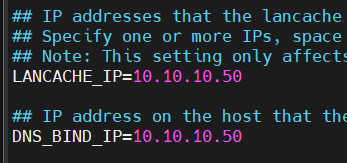
<span style="color: rgb(0, 0, 0);">In this example, I will use Lancache on 10.10.10.50 and the public IP as 123.123.123.123. What we need to do first is configure Lancache with the following inside the .env file:</span>

<span style="color: rgb(0, 0, 0);">![image.png](https://docs.jasmeow.systems/uploads/images/gallery/2024-09/scaled-1680-/YnOBrMZCk1Zc8mYX-image.png)</span>

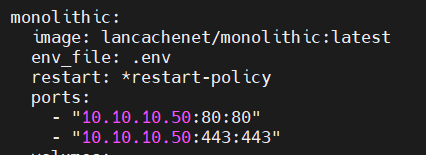
<span style="color: rgb(0, 0, 0);">Once this has been configured, head into the docker-compose.yml and update the **80** and **443** ports to be bound onto that particular bind of private IP.</span>

<span style="color: rgb(0, 0, 0);">![image.png](https://docs.jasmeow.systems/uploads/images/gallery/2024-09/scaled-1680-/cweLYqxzNXcfRyYl-image.png)</span>

<span style="color: rgb(0, 0, 0);">Once completed, start up Lancache **first** as it needs port 80 and 443 in use for the Monolithic container using **docker-compose up**. Check that it was successful, then **Ctrl+C**, then **docker-compose up -d**.</span>

<span style="color: rgb(0, 0, 0);">We've now configured Lancache to work on that private LAN IP address. For all your virtual host configuration files now for nginx, you just need to specify another private LAN IP, or the public IP if serving accessible websites (if you aren't using HAProxy).</span>

<span style="color: rgb(0, 0, 0);">![](https://jasmeow.pics/TRUN3d.png) </span><span style="color: rgb(0, 0, 0);">![](https://jasmeow.pics/USiMpB.png)</span>

<span style="color: rgb(0, 0, 0);">You can now restart nginx and it will not complain that the port is already in use as you've done this neat hack. </span>

<p class="callout warning"><span style="color: rgb(0, 0, 0);">Keep in mind that if you have software that updates the nginx vhost files automatically such as TenantOS or VirtFusion, please keep in mind that you will probably need to repeat this again on their updates.</span></p>

# Installing Debian/Ubuntu & Then Disk Unmounts - Debootstrap Error

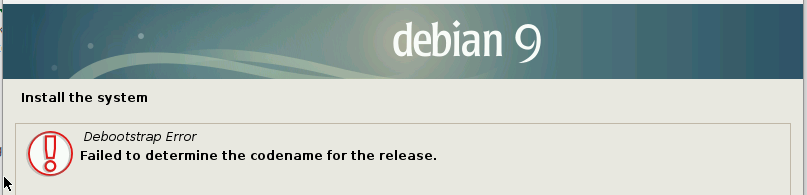
<span style="color: rgb(0, 0, 0);">You're here because you've landed yourself at the error below, stating that it could not find the codename for the release during an installation of Ubuntu or Debian. This is because the CD unmounted during your ISO install, so after provisioning the disks, it's no longer there and cannot continue. Follow below to fix it</span>

<span style="color: rgb(0, 0, 0);">![](https://jasmeow.pics/4WZ7fm.png)</span>

<span style="color: rgb(0, 0, 0);">![image.png](https://docs.jasmeow.systems/uploads/images/gallery/2024-12/scaled-1680-/xLs7qLNInkBtVnGf-image.png)</span>

<span style="color: rgb(0, 0, 0);">Press enter/escape and head back onto the installer page, then going to "Execute a shell".</span>

<span style="color: rgb(0, 0, 0);">![](https://jasmeow.pics/h1ZLsl.png)</span>

<span style="color: rgb(0, 0, 0);">Press continue.</span>

<span style="color: rgb(0, 0, 0);">![](https://jasmeow.pics/Y3Q1ua.png)</span>

<span style="color: rgb(0, 0, 0);">You're now in the BusyBox shell. Type "**blkid**" and find the CD drive. It's got the name of the ISO.</span>

<span style="color: rgb(0, 0, 0);">![](https://jasmeow.pics/stcl2p.png)</span>

<span style="color: rgb(0, 0, 0);">In this example, we can see it has the type **iso9660**, so we know that's the ISO, and the mount is **/dev/sr2**. Now simply mount it! **mount /dev/sr2 /cdrom**.</span>

<p class="callout warning"><span style="color: rgb(0, 0, 0);">Make sure it's **/cdrom** as this is what the installer is looking for.</span></p>

<span style="color: rgb(0, 0, 0);">Type exit then press back on install.</span>

<span style="color: rgb(0, 0, 0);">![](https://jasmeow.pics/RAcUQm.png)</span>

<span style="color: rgb(0, 0, 0);">Job done!</span>

<span style="color: rgb(0, 0, 0);">![](https://jasmeow.pics/qSiNOx.png)</span>

# Break Into VirtFusion Software If Admin Password Is Lost

<p class="callout warning"><span style="color: rgb(0, 0, 0);">This **will not** be successful if you have **lost the 2FA** for the only administration user. The login will be changed to the new password and you can get into the first stage of the process, but you'll be sent to **/tfa/verify**, and if you don't have the 2FA code, you're outta luck.</span>  
  
<span style="color: rgb(0, 0, 0);">This is useful for first time installations where you lost the login box that appears on final install or if you need to get into an administrator account in an emergency.</span></p>

<span style="color: rgb(0, 0, 0);">Go onto the Hypervisor Control server and create a python script below, like **nano new-password.py**. Update the password here line with your relevant new password.</span>

```python
import bcrypt

# Replace with the new password for Jasmine
password = "<PASSWORD-HERE>"

# Generate a bcrypt hash with cost factor 12
salt = bcrypt.gensalt(rounds=10)
hashed_password = bcrypt.hashpw(password.encode(), salt)

# Print the hash
print(hashed_password.decode())
```

<span style="color: rgb(0, 0, 0);">Run the python script with **python3 new-password.py**. You should see it print it in bcrypt hash. </span>

<span style="color: rgb(0, 0, 0);">![image.png](https://docs.jasmeow.systems/uploads/images/gallery/2025-01/scaled-1680-/FUaKCr0lvb8W5cEj-image.png)</span>

<span style="color: rgb(0, 0, 0);">We now need to update the database. Run **cat /opt/virtfusion/app/control/.env**. We need the database name. Now head into MySQL, normally just being **mysql** in the terminal.</span>

<span style="color: rgb(0, 0, 0);">![](https://jasmeow.pics/1kTrOz.png)</span>

<span style="color: rgb(0, 0, 0);">Type **use** **&lt;DB-NAME&gt;** you located earlier.</span>

<span style="color: rgb(0, 0, 0);">![](https://jasmeow.pics/mkIxuN.png)</span>

<span style="color: rgb(0, 0, 0);">Run **select \* from users** and you need to find the email you wish to update. </span>![](https://jasmeow.pics/aBc2I3.png)  
  
<span style="color: rgb(0, 0, 0);">In our example, we'll use Jasmine's email. Now run the following to fix the user:</span>

```markdown
UPDATE users
SET password = '<PASSWORD>'
WHERE email = '<EMAIL>';
```

<span style="color: rgb(0, 0, 0);">This should be successful with no issues:</span>

<span style="color: rgb(0, 0, 0);">![image.png](https://docs.jasmeow.systems/uploads/images/gallery/2025-01/scaled-1680-/6RMj1rpN4chf92UP-image.png)</span>

<span style="color: rgb(0, 0, 0);">You can now login to VirtFusion normally using this new password. Make sure to clear any cookies before signing in. There's a potential that it will be caching any session you have, so also use incognito.</span>