# Small Commands, Issues And Guides - A Collection
This page is for commands, issues or guides which don't need to be added as a separate page. You can search for them with **Ctrl + F** or click the "Search" at the top.
##### **Only Allow PublicKey Authentication Overriding Password Auth**
No idea why, some systems are completely ignorant and ignoring the demand for no password auth.
Add this line to bottom of SSHD config. No idea why, but the The PA parameter is no and ChallengeResponseAuthentication is also no, but still auths with password... ***sigh.***
**AuthenticationMethods publickey**
##### **Give A MongoDB User Permission To Command "mongodump”**
use admin
db.grantRolesToUser( "**USER**", \[ "readWrite" , { role: "readWrite", db: "config" } \] )
##### **Remove Apache2/Nginx Python3’s modules for Certbot**
**Apache2: **python3-certbot-apache**
Nginx: **python3-certbot-nginx
##### **Remove a package that is being stubborn and will not remove**
sudo dpkg --force-all -P <package-name-to-remove>
##### **Absolute headache with MySQL 8.0 mixing with MariaDB’s installs**
MySQL 8.0 has the config file in */etc/mysql/mysql.conf.d/mysqld.cnf* like MariaDB has */etc/mysql/mariadb.conf.d/50-server.cnf*.
**BY DEFAULT** MySQL binds publicly… MariaDB binds to internal localhost.
Use **mysqld --verbose --help | grep bind** to actually see it bind publicly on first installation…
If you mix MariaDB’s config files + MySQL’s, it’s not my.cnf, mysql.cnf, the conf.d folder entirely or any other configuration. **It is literally mysqld.cnf in the mysql.conf.d folder.** What utter BS.
##### **Fixing the repository error for changing it’s “version” for updates**
**Example:** *N: Repository 'http://deb.debian.org/debian bullseye InRelease' changed its 'Version' value from ‘11.7' to '11.8'*
**One command:** apt-get --allow-releaseinfo-change update
**Taken from:** *[https://www.reddit.com/r/debian/comments/ca3se6/for\_people\_who\_gets\_this\_error\_inrelease\_changed/](https://www.reddit.com/r/debian/comments/ca3se6/for_people_who_gets_this_error_inrelease_changed/)*
##### **The certbot command that actually works to change the email**
certbot update\_account –email **<email>**
##### **SlimeWorldManager Installation**
- Download the latest Spigot/Paper jar you require and pop it into the main directory.
- Put the slimeworldmanager-plugin-<version>.jar into the same place as the server.jar.
- Update your startup command to include **-javaagent:<thejar>**, like the below:
**Taken from:** *[https://github.com/cijaaimee/Slime-World-Manager/blob/master/.docs/usage/install.md](https://github.com/cijaaimee/Slime-World-Manager/blob/master/.docs/usage/install.md)*
##### **Crons not running for WHMCS on cPanel - They hang and sit there doing nothing**
- Log into WHM (The admin side of cPanel)
- Navigate to "*MultiPHP INI Editor*" by searching it on the left hand side.
- Select the version of PHP that your site uses, using the editor is easier.
- Increase the following variables:
- "max\_execution\_time" - 240/300 should be fine.
- "max\_input\_time" - same as above.
- "memory\_limit" - Higher than 1024M.
- Click "*Apply"*
- Repeat for all versions of PHP that are having a timeout error.
- Restart cPanel's FPM with systemctl restart ea-php81/82-php-fpm.
**Taken from:** *[https://support.cpanel.net/hc/en-us/articles/360052237994-How-to-increase-the-Max-Execution-Time-directive-for-PHP](https://support.cpanel.net/hc/en-us/articles/360052237994-How-to-increase-the-Max-Execution-Time-directive-for-PHP)*
##### **RAID Ubuntu 20.04**
**Taken from:** *[https://kifarunix.com/setup-software-raid-on-ubuntu-20-04/](https://kifarunix.com/setup-software-raid-on-ubuntu-20-04/) *
**Note** - If you get error: *partition length of \[BIGGERSIZE\] sectors exceeds the msdos-partition-table-imposed maximum of \[SMALLERSIZE\]*
**Follow**: *[https://askubuntu.com/questions/84538/trouble-creating-3tb-ext4-partition-due-to-msdos-partition-table-imposed-error](https://askubuntu.com/questions/84538/trouble-creating-3tb-ext4-partition-due-to-msdos-partition-table-imposed-error)*
##### **Switching RAID 1 to RAID 0**
Scroll down a bit to locate the answer from nmr, which includes removing the mirror, changing, waiting then resizing.
**Taken From:** *[https://serverfault.com/questions/915284/is-it-possible-to-convert-raid1-to-raid0-without-system-reinstalation](https://serverfault.com/questions/915284/is-it-possible-to-convert-raid1-to-raid0-without-system-reinstalation)*
##### **Remove .html/.php extension**
Read the answer from Arnon, the big threaded part with explanations.
**Taken from:** *[https://stackoverflow.com/questions/38228393/nginx-remove-html-extension](https://stackoverflow.com/questions/38228393/nginx-remove-html-extension)*
##### **Can't run a module or build a NodeJS app due to no such file and has no installation candidate**
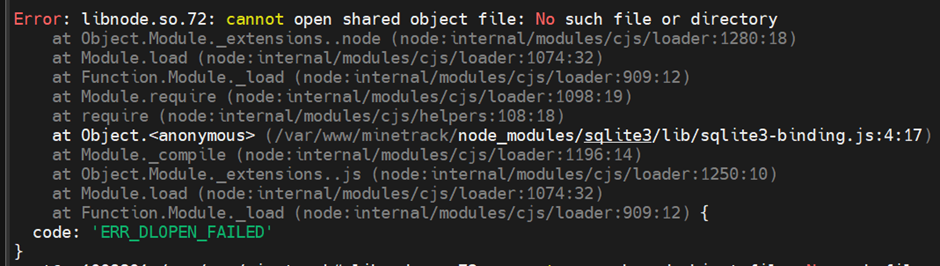
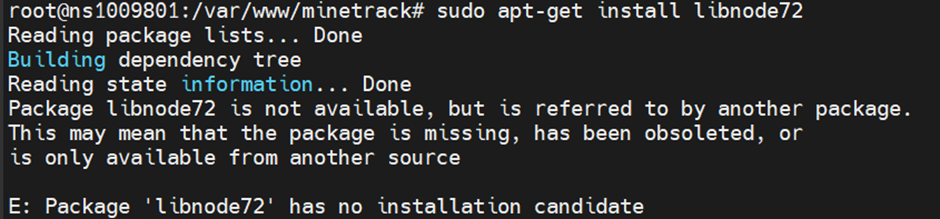
One simple command to clear out the old NPM packages already downloaded from cache.
**npm clean-install**
You can then go about reinstalling with yarn build or another method used.
##### **Any NPM package doesn't install into /usr/local/bin, such as ghostcms - Updating the prefix location due to weird bug**
**Taken from:** [https://askubuntu.com/questions/1102579/using-npm-to-install-file-to-usr-local-bin](https://askubuntu.com/questions/1102579/using-npm-to-install-file-to-usr-local-bin)
For some weird reason, on some installs of NodeJS and then installing npm, it ends up at /usr and not /usr/local to allow /usr/local/bin packages to be viewable, such as GhostCMS's ghost-cli. Stupid bug, no idea why. Run the set prefix command to fix it, then install Ghost's CLI fine.
The reason why this needs doing is due to the error "Error: Cannot find module '/usr/local/bin/ghost'" and "MODULE\_NOT\_FOUND" which is absolutely idiotic since you literally just installed it, but in the wrong place. This will happen when trying to start the service and it fails.
```bash
root@S01:/var/www/website.com# npm get prefix
/usr
root@S01:/var/www/website.com# npm config set prefix /usr/local
root@S01:/var/www/website.com# npm get prefix
/usr/local
sudo npm install ghost-cli@latest -g
```
##### **Date command in linux - Echo and crontab support**
When using the date command in terminal, if you are echoing the line, you need to make sure you don't escape the percentages as it will include the slashes.
- echo $(date +"\\%d-\\%m-\\%Y").txt 
- echo $(date +"%d-%m-%Y").txt 
However, when inside crontab, you will need to escape them otherwise cron believes it is an operand and not a variable to pass. And example is below where you also need the path in a full string for it to echo properly and understand the date variable.
- 
- 
You can also use **-d** for naming how we name things, such as "yesterday" "tomorrow" or "2 months ago".

- **Note:** You can also do broken English such as "2 month ago" instead of months!
- **Taken from:** [https://stackoverflow.com/questions/17015187/how-does-date-d-parse-dates](https://stackoverflow.com/questions/17015187/how-does-date-d-parse-dates)
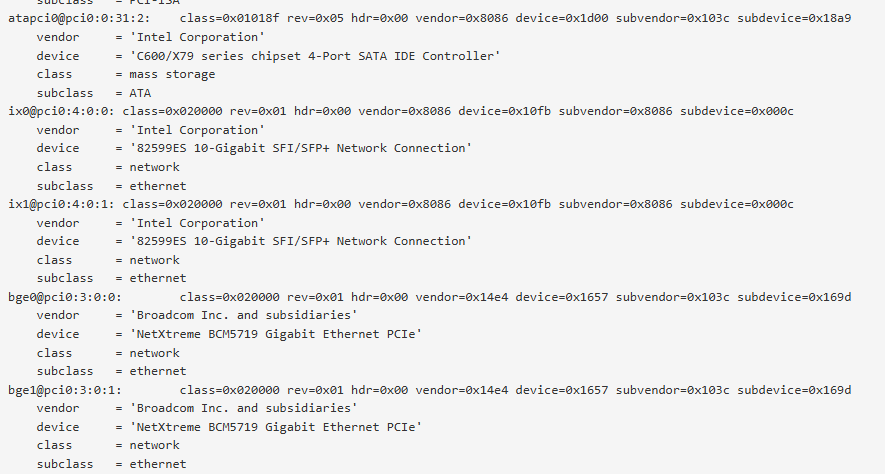
##### **List hardware device information for PFSense & FreeBSD OS**
Command **lshw** does not exist on these platforms, use **pciconf -lv**.**
**
##### **Qemu Image mounting & commands on normal OS and Ceph installed systems**
**Run:** apt install qemu-utils && modprobe nbd max\_part=8
**Connect:** qemu-nbd -c /dev/nbd0 a-disk-which-is-formatted-in-qcow2-format.img
**Disconnect:** qemu-nbd -d /dev/nbd0
**Get information of a image:** qemu-img info a-disk-which-is-formatted-in-qcow2-format.img
**Converting:**
qemu-img convert -f qcow2 -O raw image-to-convert.img image-to-get-as-raw.raw
qemu-img convert -f raw -O qcow2 image-to-convert.raw image-to-get-as-qcow2.img
If disk is an LVM drive (With LVM partitions basically) and cannot be mounted/viewed to get to the root partition, you need to update the LVM configuration file.
**nano /etc/lvm/lvm.conf**
**Replace:** global\_filter=\["r|/dev/zd.\*|","r|/dev/rbd.\*|"\]
**With:** global\_filter=\["r|/dev/zd.\*|","a|/dev/rbd.\*|"\]
Then complete the following:
**Run:** pvscan && lvscan
**Then enable with:** vgchange -ay
**Run:** mount /dev/<VG\_NAME>/<LV\_NAME> /mnt/<LOCATION>
Once you're done using the mounted LVM drive:
**Run:** vgchange -an <VG\_NAME>
**IE:** vgchange -an vg0 (Doesn't actually mean now active, it is actually unmounting it #stupidLVM)
**Get ceph pools:** ceph osd pool ls
**List:** rbd ls <POOL-NAME>
**Map a drive to be viewed:** rbd map ceph-disk/vm-<ID>-disk-0
**Remove a mapped drive:** rbd unmap /dev/rbd0
**Export:** rbd export <POOL-NAME>/vm-<ID>-disk-0 vm-<ID>-disk-0.raw
**Import:** rbd import <LOCATION> <POOL-NAME>/<IMAGE-NAME>
**Remove image from ceph cluster entirely for that VM (Careful):** rbd remove <POOL-NAME>/vm-<ID>-disk-0
##### **Get into an OS that is stuck on the Grub boot window**
This section **only** applies if you knew the **OS booted before**, but now doesn't work. This is probably because you moved a virtual machine between hosts and/or software, like raw to qcow2, or from VirtFusion/Standalone to Proxmox, etc.
You might need to boot into gparted to potentially grab the vmlinuz images to boot off of (what their names are and mount the drive, ls them, etc, **BUT** you might be able to do **ls** inside of your grub after setting the root=. (Such as set root=(hd0) then ls)
set root=(hd0)
linux /boot/vmlinuz-x.x.x-amd64 root=/dev/<DRIVE> ro
initrd /boot/initrd.img-x.x.x-amd64
boot
**EXAMPLE:**
set root=(hd0)
linux /boot/vmlinuz-5.10.0-33-amd64 root=/dev/sda ro
initrd /boot/initrd.img-5.10.0-33-amd64
boot
Running the "boot" command will make it freeze, wait up to 1 minute as it will glitch out and finally boot into normal OS. You can then repair grub with *update-grub*/*update-initramfs -u -k all*, etc.
##### **Fix syncing of MySQL servers not syncing when both master & slave**
Run this on server 2:
```mssql
STOP SLAVE;
CHANGE MASTER TO
MASTER_HOST='MYSQL-01.abc.com',
MASTER_USER='',
MASTER_PASSWORD='',
MASTER_LOG_FILE='mysql-bin.000001', -- from MYSQL-01 "SHOW MASTER STATUS;"
MASTER_LOG_POS=753, -- from MYSQL-01 "SHOW MASTER STATUS;"
MASTER_SSL=1,
MASTER_SSL_CA='/etc/mysql/ssl/ca-cert.pem',
MASTER_SSL_CERT='/etc/mysql/ssl/server-cert.pem',
MASTER_SSL_KEY='/etc/mysql/ssl/server-key.pem';
START SLAVE;
```
Run this on server 1:
```mysql
STOP SLAVE;
CHANGE MASTER TO
MASTER_HOST='MYSQL-02.abc.com',
MASTER_USER='',
MASTER_PASSWORD='',
MASTER_LOG_FILE='mysql-bin.000003', -- from MYSQL-02 "SHOW MASTER STATUS;"
MASTER_LOG_POS=157, -- from MYSQL-02 "SHOW MASTER STATUS;"
MASTER_SSL=1,
MASTER_SSL_CA='/etc/mysql/ssl/ca-cert.pem',
MASTER_SSL_CERT='/etc/mysql/ssl/server-cert.pem',
MASTER_SSL_KEY='/etc/mysql/ssl/server-key.pem';
START SLAVE;
```
##### **When running "mysql" command in terminal, login prompts for password.**
This happens due to the password being modified for the root user, such as breaking into it from networking only mode, or from transferring the "mysql" database which houses the user logins. You need to make the root user login with "unix\_socket" to be able to just simply run "mysql" in terminal without a password again using the following command:
```bash
ALTER USER 'root'@'localhost' IDENTIFIED WITH unix_socket;
```