# Transferring server data between two dedicated systems - Wget & Python3
The easiest way to transfer a tarball or zip file from one dedicated system to another is by using wget and a python3 webserver, protected from sending out the data from UFW allow in only that IP address or using the internal network if your system has it, such as OVH's vSwitch/vRack system.
Open up SSH. In this example, we will be using Pterodactyl's UUID's in the volumes folder, but this also applies to any zip/tarball you want to do this on such as servers stored in /home or /srv.
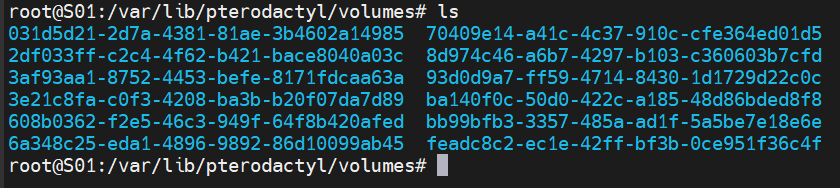
Go to `cd /var/lib/pterodactyl/volumes` and then do `ls` to see the containers.
[](https://docs.jasmeow.systems/uploads/images/gallery/2023-07/cf74gzeURhMtnqOy-image.png)
We will use "031d5..." as an example. Run `tar -zcvf SERVERNAME.tgz 031d5` then press tab to autofill the entire server ID.
[](https://docs.jasmeow.systems/uploads/images/gallery/2023-07/OfJGsUCQpDnu1pao-image.png)
Let it finish tarballing. You'll know when it's finished as the output stops showing you what files it's archived and goes back to the normal terminal line waiting input.
[](https://docs.jasmeow.systems/uploads/images/gallery/2023-07/QSdkXS9u2tn68c4Z-image.png)
Do `ip a` on your destination system and find the public IP. Remember, some systems have internal networking so you might be able to do "`wget 10.10.10.1:8000/hub.tgz`" for example instead of the public IP and whitelisting it, as it normally is already whitelisted.

Once you've found either the public or the private IP, go back onto your source system and type `ufw allow from x.x.x.x` changing the x's to your IP.

You can now type `ip a` on your source system to get its IP you need.

On your source system, now type `python3 -m http.server` to start up a temporary HTTP server on port 8000 for WGet to pull from. If the port is already in use and errors out, type the port after the command, as shown below.
[ ](https://docs.jasmeow.systems/uploads/images/gallery/2023-07/m5mAQZmARsOrD3jX-image.png)[](https://docs.jasmeow.systems/uploads/images/gallery/2023-07/EJVS7baTjpbZ9T1Q-image.png)
Go to your destination system and go to a folder you want to import into, such as making a directory called /import then going into it. Run `wget x.x.x.x:PORT/FILENAME.tgz`, replacing the x's with your public or private IP, the PORT with the port it opened and the FILENAME with the tarball name.

You will see a progress bar with it transferring over. Once it's done, it will go back to the normal terminal line.

You can now go back to the source system and "Ctrl + C" to exit out of the webserver.
[](https://docs.jasmeow.systems/uploads/images/gallery/2023-07/vLJSKg5QXpTISBAc-image.png)
On your destination system, you can now do what you need to do on your tarball, such as move it to another place, extract it with `tar -xvf FILENAME.tgz` and more.
[](https://docs.jasmeow.systems/uploads/images/gallery/2023-07/ZxdwL4ZpWuorrz2s-image.png)
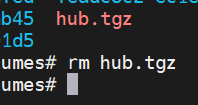
If the transfer was successful and the extraction also was successful, make sure you go onto the old source system and delete the old tarball, you don't want to fill up on disk space.
[](https://docs.jasmeow.systems/uploads/images/gallery/2023-07/oRC04WJ3deb0xog0-image.png)