Make sure you use the right domain where you purchased your dedicated system from as we will need this after you have created the subuser account. OVH's login systems don't share account credentials across their databases, so if you try to login to **ca** for example it won't work if you have a system bought on **us**.
Login to your account using the My account or My customer account button situated on the header of the website.  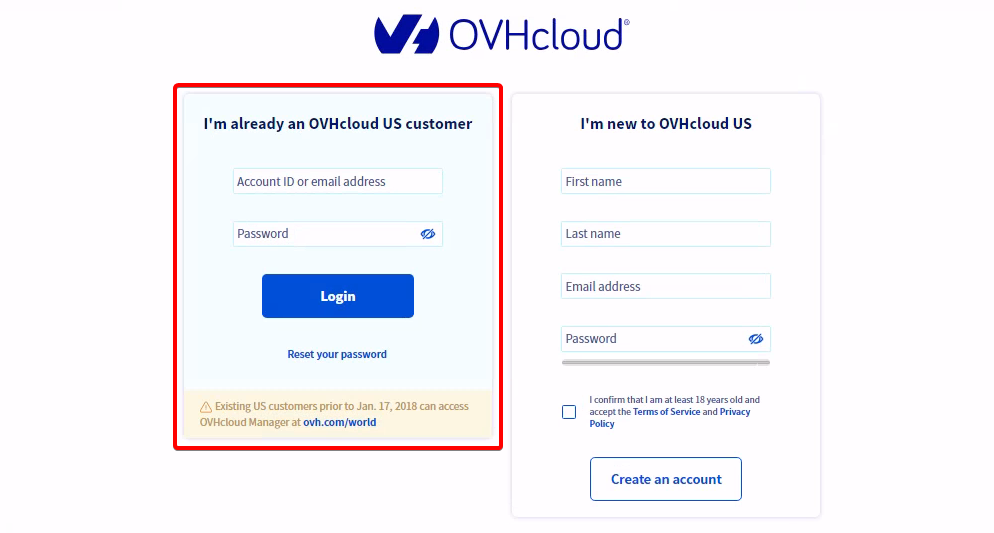 To add someone as a subuser you will have to get to your Account Settings by clicking your name in the top right corner and then clicking on your profile picture as highlighted below.  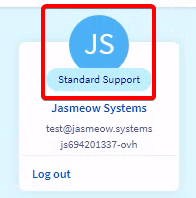 Proceed to the User Management tab and follow the step below.**!! If user management is missing, please see this: **OVH has moved it to along the left side bar** >  >  > **
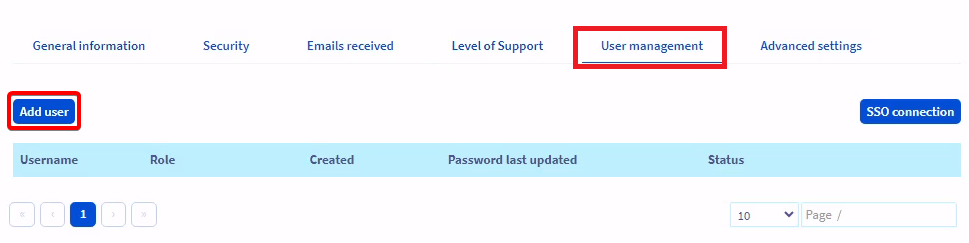 Please use the provided information in your **💬-comms-chat** channel to create the subuser account and press confirm when done.Do not put the ID in the login box. Put the name of "Jasmine" into the box, otherwise our login becomes 29-xx/29-xx and not 29-xx/Jasmine.
#### **You are not finished, please continue reading.** We need the ID + the URL to login. 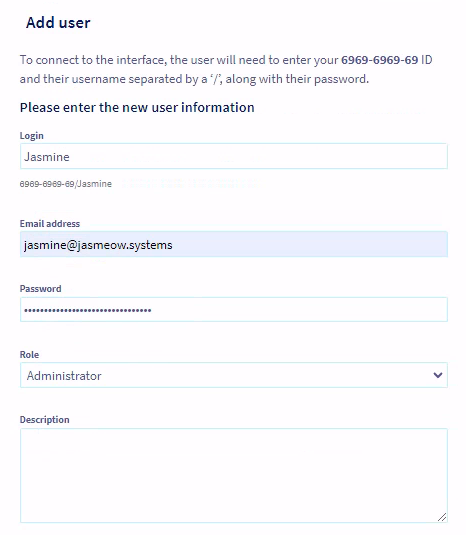 After creating the subuser account **please** send the **ID** that OVH gives you right after. If you see below, it states **Example: 6969-6969-69/Jasmine**. **PROVIDE** **THE ID.**  Additionally, make sure you inform us what domain it is, such as [https://ca.ovh.com](https://ca.ovh.com), [https://us.ovhcloud.com](https://us.ovhcloud.com), etc. They have around 7 different login pages. Get it from the address bar in the top left. **PROVIDE THE URL.**  # Subuser Account Invitation For Bloom.Host Head to Bloom.Host's website at [https://bloom.host/](https://bloom.host/) and login to their Billing Area in the top right. 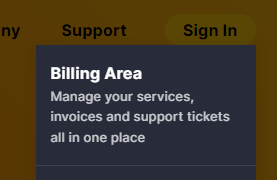 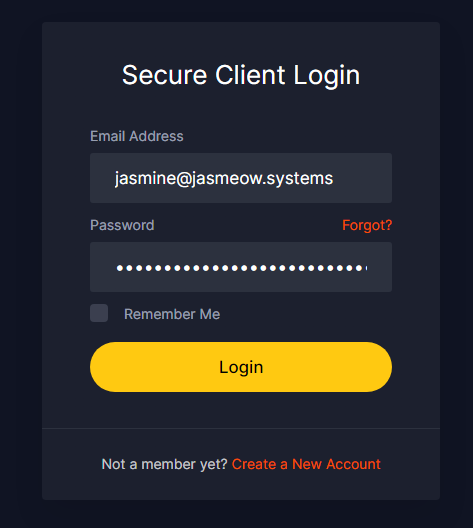 In the top right corner, click your name, then in the dropdown, click "User Management".  Click "Invite New User" in yellow then put in our email [clientsystems@jasmeow.systems](mailto:clientsystems@jasmeow.systems) to add us. 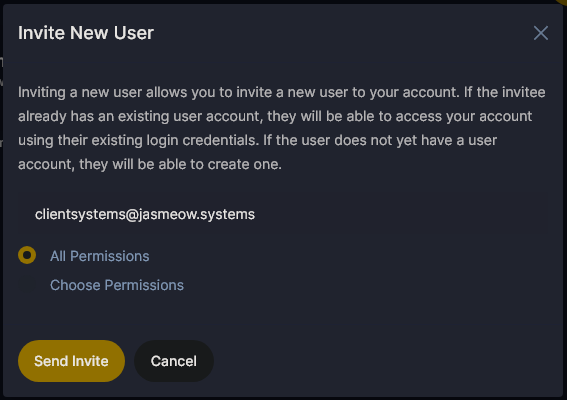 Please select all permissions, but if you want to limit access, we must at least have the following as we need to see the systems, complete product password resets, use single sign-on to access the control panels for the systems and opening or viewing current support tickets. The other ones are optional and domains are not required if you don't have them. If you do choose all permissions, we can add additional system administrators who might need to login as management can add them.We see your details in the billing area anyway such as name and address, so turning off the tick for modifying master account profile is slightly pointless as it says "Access" when this just means we can't change your name or details like that.
  Click "Send Invite" at the bottom. We are now added and can view your account.  # Subuser Account Invitation For Hosturly Head to Hosturly's website at [https://hosturly.com](https://hosturly.com) and click "Login" in the top right to go to their Billing Area.  [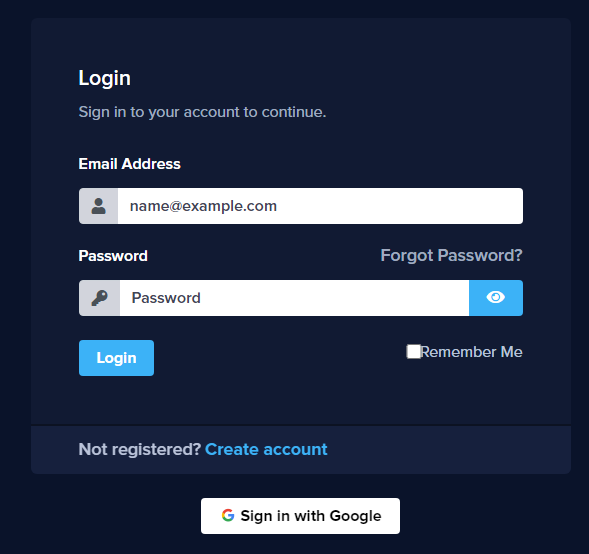](https://docs.jasmeow.systems/uploads/images/gallery/2023-12/fMOyyLZMy20nBDNt-image.png) In the top right corner, click your name, then in the dropdown, click "User Management".  Click "Invite New User" in yellow then put in our email [clientsystems@jasmeow.systems](mailto:clientsystems@jasmeow.systems) to add us. 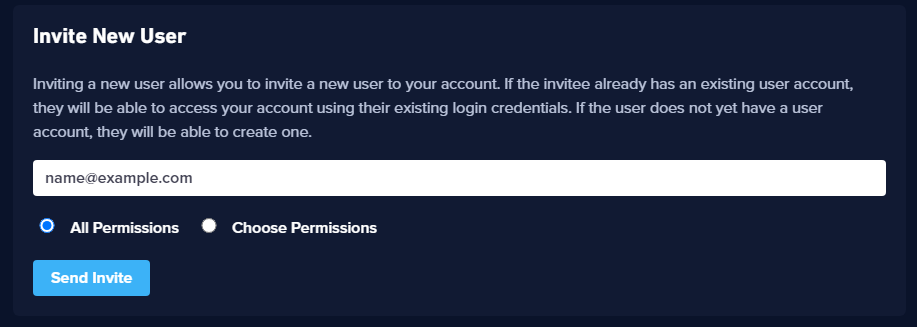 Please select all permissions, but if you want to limit access, we must at least have the following as we need to see the systems, complete product password resets, use single sign-on to access the control panels for the systems and opening or viewing current support tickets. The other ones are optional and domains are not required if you don't have them. If you do choose all permissions, we can add additional system administrators who might need to login as management can add them.We see your details in the billing area anyway such as name and address, so turning off the tick for modifying master account profile is slightly pointless as it says "Access" when this just means we can't change your name or details like that.
 Click "Send Invite" at the bottom. We are now added and can view your account.  # Subuser Account Invitation For PebbleHost Head to PebbleHost's website at [https://pebblehost.com/](https://pebblehost.com/) and login by hovering over "Panel Login" in the top right and clicking "Billing Panel".   In the top right corner, click your name, then in the dropdown, click "User Management".  Click "Invite New User" in yellow then put in our email [clientsystems@jasmeow.systems](mailto:clientsystems@jasmeow.systems) to add us. 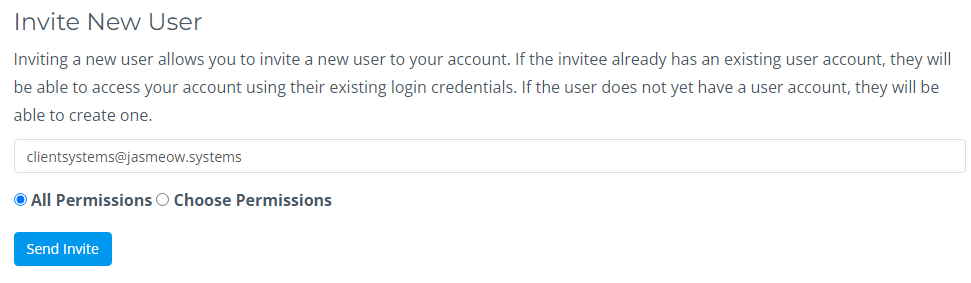 Please select all permissions, but if you want to limit access, we must at least have the following as we need to see the systems, complete product password resets, use single sign-on to access the control panels for the systems and opening or viewing current support tickets. The other ones are optional and domains are not required if you don't have them. If you do choose all permissions, we can add additional system administrators who might need to login as management can add them.We see your details in the billing area anyway such as name and address, so turning off the tick for modifying master account profile is slightly pointless as it says "Access" when this just means we can't change your name or details like that.
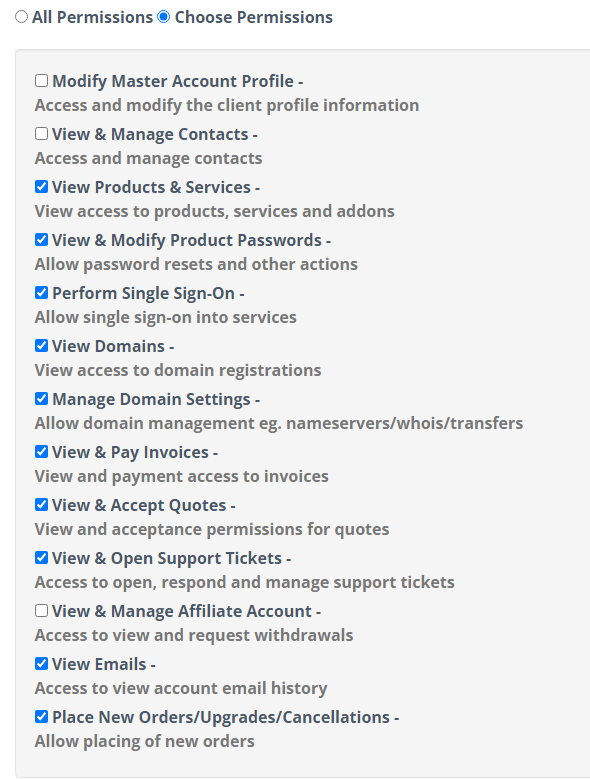 Click "Send Invite" at the bottom. We are now added and can view your account.  # Subuser Account Invitation For SparkedHost Head to SparkedHost's website at [https://sparkedhost.com/](https://sparkedhost.com/) and click "Client Area" in the top right.  In the top right corner, click your name, then in the dropdown, click "User Management".  Click "Invite New User" in yellow then put in our email [clientsystems@jasmeow.systems ](mailto:clientsystems@jasmeow.systems)to add us.  Please select all permissions, but if you want to limit access, we must at least have the following as we need to see the systems, complete product password resets, use single sign-on to access the control panels for the systems and opening or viewing current support tickets. The other ones are optional and domains are not required if you don't have them. If you do choose all permissions, we can add additional system administrators who might need to login as management can add them.We see your details in the billing area anyway such as name and address, so turning off the tick for modifying master account profile is slightly pointless as it says "Access" when this just means we can't change your name or details like that.
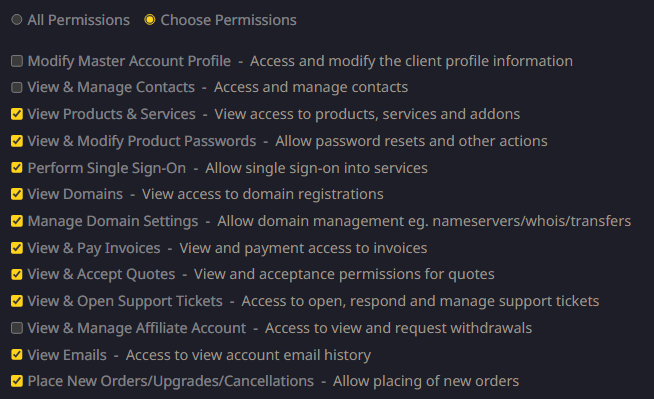 Click "Send Invite" at the bottom. We are now added and can view your account.