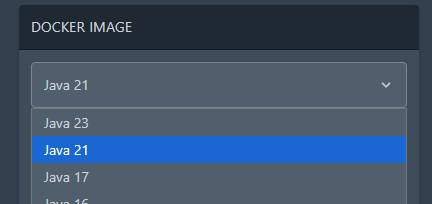
**Note when doing this:** If you update your panel and use the commands from the pterodactyl documentation, your changes to the default eggs will be **overwritten**. You can ignore the command **php artisan migrate --seed --force** to prevent this but this isn't recommended on panel updates. The main suggestion here is to make nnew eggs for your custom changes. This does not remove the installed version on a server, just hides it again from the dropdown for the selected docker image.
In this example we will add Java 22 and 23 to the Minecraft Paper egg. Firstly, head on over to **Admin > Nests > Click the egg**. Look a few sections down and you'll see "Docker Images". In here, make a new line above/below where you want it to appear, and continue reading. 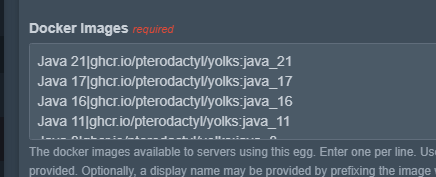 The format of Docker Images to show in the dropdown is **NAME PIPE SYMBOL IMAGE SOURCE.** For example, **J****ava 23|ghcr.io/ptero-eggs/yolks:java\_23**. You can normally find the image source from [https://ghcr.io/ptero-eggs/yolks](https://ghcr.io/ptero-eggs/yolks) and finding the right one you require. Let's go find Java 23. Click the URL above and then "View all tagged versions".  **Ctrl + F** and find the one you need. Search "java\_23" or "java\_" and you'll find it. Keep in mind there's many pages so you'll need to keep looking, such as *node\_* might be on page 3.   As we've searched here, it has the name **java\_23**. If you click on the blue text of the image you need, copy the **ghcr.io/...** section after the FROM.  Now paste this into the panel, put the **Name** at the front followed by a **Pipe Symbol**, and you're done.  This will now appear under servers with that egg under "Startup" tab.