# Adding New Games & Services To Pterodactyl With Nests
Go to your panel and head to the admin side.

Click "Nests" bottom left.

You will see the following list. These are the default Eggs supplied with the panel when installed for the first time or restored after deletion when you update the panel. This is the reason why the red warning states don't edit the default Eggs as you will lose the changes.

In this example, we want to add the Discord bot eggs, mainly NodeJS for starters as this is the most common bot language. In the top right, click "Create New":

Give a name and description. An example is below, click Save in the bottom right when done.
 
We now need to go and get our Egg file JSON from either:
- The Pterodactyl default Eggs Github. This is where you can find eggs for all sorts of supported games and services - [Link.](https://github.com/parkervcp/eggs)
- Your download from a forum site such as BuiltByBit in the zip file or other website hosting the raw JSON code you can copy and paste into a notepad and save it.
As we are doing a Discord NodeJS Egg in our example, we will go to Parker's default Pterodactyl Eggs and find **Generic > NodeJS > egg-node-js-generic.json**.

Click on it then in the top left click "Raw".

Do Ctrl + A > Ctrl + C to select all of the text, then open up Notepad and paste it in with Ctrl + V.
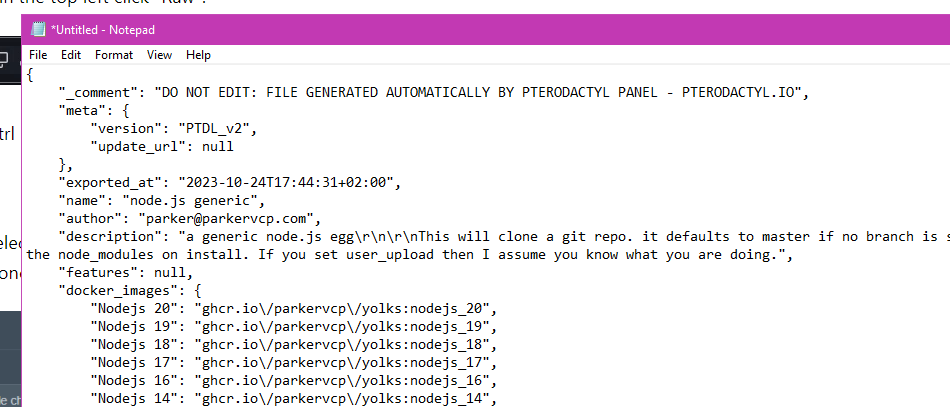
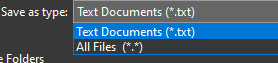
Top right, press **File > Save As** then in the popup window, change the **Save as type:** to **All Files**.
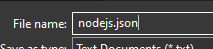
Give the file a name and put **.json** on the end of it.
Save, close Notepad and go back to Pterodactyl.
To import the Egg into the Nest for the panel to run the game or service properly, click "Import Egg" in the top left.

In the popup, select the Egg file JSON on your computer and then select the Nest we made earlier, clicking "Import" once done.
 
Once imported, you will see the below success message and the Egg title:

When you now go to make a server on the panel under Servers > Create New, you will now see under the "Nest Configuration" section your newly created Nest and its Eggs you imported.

For already existing servers, go to Servers > Click the server you want > Startup tab. Under the "Service Configuration" header you can then select the Nest & Egg.

**Do note that if you do change the egg on an existing server, this will "rebuild" it, downloading the latest container image and running its script ready for use on next start, possibly making you lose data. Use with caution.**
If you see below, when you change the Egg, the Startup Command doesn't update but the Egg shows the Default Service Start Command. Make sure you copy the default line into the Startup command box if you are switching Eggs and don't have a custom configuration otherwise the server will try to start using the old Startup command. An example of this is switching a Javascript Egg to a NodeJS Egg and still has the **java -jar** command.
****