# Configuring A Standalone Plugin To Access A MySQL/MariaDB Database

<span style="color: rgb(0, 0, 0);">Plugins such as CoreProtect, GadgetsMenu and more ideally should have their information stored in databases as this is far more efficient and less prone to corruption than SQLLite files. </span>

<span style="color: rgb(0, 0, 0);">If you have ever seen "Data is malformed" error from a plugin spamming the console (Normally CoreProtect) this means that you didn't safely shutdown the server and corrupted the SQLLite file, and will need to delete it to start again from scratch, possibly losing over 50GB+ worth of */co i* history, causing a huge headache for you and your server admins meaning that griefers have the upper hand.</span>

---

<p class="callout warning"><span style="color: rgb(0, 0, 0);">For each plugin, make a different database. Don't merge them together as it makes organisation a headache later on down the line when you want to migrate to a new system and tables are merged. You may also cause conflicts when the table names are the same such as different CoreProtect servers, as the prefix is always co\_, so linking your Hub and Survival together would cause data mismatches due to them both using the co\_block table.</span></p>

<span style="color: rgb(0, 0, 0);">It is better to organise databases by location, such as: </span>

- <span style="color: rgb(0, 0, 0);">LuckPerms = Global = Proxy</span>
- <span style="color: rgb(0, 0, 0);">CoreProtect = One Server = Survival</span>

<p class="callout info"><span style="color: rgb(0, 0, 0);">For this example tutorial, we will be using LuckPerms.</span></p>

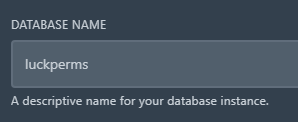
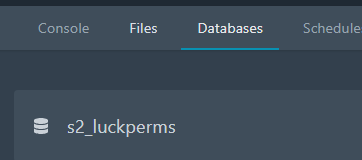
<span style="color: rgb(0, 0, 0);">Pick a server on your panel and go to the "Databases" tab. Here, in the bottom right corner, you will have "New Database". Click this and name it "luckperms", then click "Create Database".</span>

<span style="color: rgb(0, 0, 0);">![image.png](https://docs.jasmeow.systems/uploads/images/gallery/2023-07/scaled-1680-/gSCRDjfPc4TXCDEI-image.png) ![image.png](https://docs.jasmeow.systems/uploads/images/gallery/2023-07/scaled-1680-/pnj3mn3V2O0U4OcN-image.png) ![image.png](https://docs.jasmeow.systems/uploads/images/gallery/2023-07/scaled-1680-/x5XawMD4G1RiPkWP-image.png) ![image.png](https://docs.jasmeow.systems/uploads/images/gallery/2023-07/scaled-1680-/h3B6TalNMMctkkpZ-image.png)![image.png](https://docs.jasmeow.systems/uploads/images/gallery/2023-07/scaled-1680-/QX3sdTNtfVbCmRPl-image.png)</span>

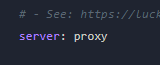
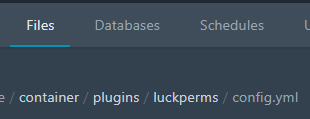
<span style="color: rgb(0, 0, 0);">Go to the File Manager &gt; Plugins &gt; LuckPerms &gt; config.yml. Scroll down and firstly set the server name to what server you are going to be configuring the the plugin on. For example, "Proxy".</span>

<span style="color: rgb(0, 0, 0);">![image.png](https://docs.jasmeow.systems/uploads/images/gallery/2023-07/scaled-1680-/M6mBDYgEIy595PZq-image.png)</span>

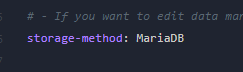
<span style="color: rgb(0, 0, 0);">In the storage-method variable, set it to "MariaDB" from H2 to start linking to the database.</span>

<span style="color: rgb(0, 0, 0);">![image.png](https://docs.jasmeow.systems/uploads/images/gallery/2023-07/scaled-1680-/SFxH9Tjy9Z6aRr7J-image.png)</span>

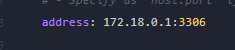
<span style="color: rgb(0, 0, 0);"><span style="color: #000000;">Scroll down a bit more and find the address. Replace with ***172.18.0.1*** as the IP and some plugins require "3306" as a colon next to the IP, some have a dedicated option for the port such as Port: 3306.</span></span>

<span style="color: rgb(0, 0, 0);">![image.png](https://docs.jasmeow.systems/uploads/images/gallery/2023-07/scaled-1680-/uA7H4OqvpyJH5rE5-image.png)</span>

<span style="color: rgb(0, 0, 0);">Right click the tab with "Duplicate" then you will have one tab which has the configuration file open on it, and the other one you can click back to the ***Databases*** tab on the panel.</span>

<span style="color: rgb(0, 0, 0);">![image.png](https://docs.jasmeow.systems/uploads/images/gallery/2023-07/scaled-1680-/I2YnwBsF1ijLSEUq-image.png) ![image.png](https://docs.jasmeow.systems/uploads/images/gallery/2023-07/scaled-1680-/BtsGrnyDyndTsI9I-image.png) ![image.png](https://docs.jasmeow.systems/uploads/images/gallery/2023-07/scaled-1680-/g4xduuxRAnvclHsm-image.png)</span>

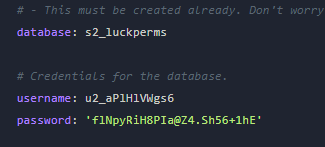
<span style="color: rgb(0, 0, 0);">Copy the database name by clicking it on the panel, in our case, s2\_luckperms, and then putting it into the config. Repeat the same for the username. For the password, click the eye symbol and you will see the password to also put into the config.</span>

<span style="color: rgb(0, 0, 0);">![image.png](https://docs.jasmeow.systems/uploads/images/gallery/2023-07/scaled-1680-/LTM7szINML2ZPVsS-image.png) ![image.png](https://docs.jasmeow.systems/uploads/images/gallery/2023-07/scaled-1680-/URVsvj6rxyZopUaj-image.png)</span>

<span style="color: rgb(0, 0, 0);">You can now save it with Ctrl + S or the "Save Content" button.</span>

<span style="color: rgb(0, 0, 0);">![image.png](https://docs.jasmeow.systems/uploads/images/gallery/2023-07/scaled-1680-/aNAjvSwPEOmDfVnI-image.png)</span>

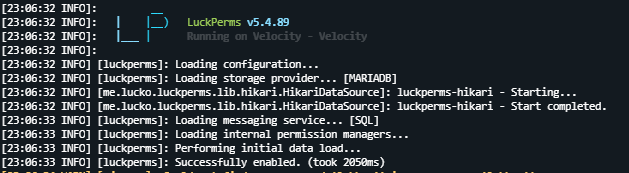
<span style="color: rgb(0, 0, 0);">You can now restart the server and it will link successfully to the database.</span>

<span style="color: rgb(0, 0, 0);">![image.png](https://docs.jasmeow.systems/uploads/images/gallery/2023-07/scaled-1680-/ogwHKuLsAiXa7aOo-image.png)</span>