This next part gets a little confusing, so please read in depth and don't presume anything, causing an unfortunate mistake. If you have any questions, don't hesitate to ask.
If you click into the schedule after creating it, you will see the below. You will notice three buttons. Edit, which allows you to change the schedule name and when it runs, New Task which adds tasks onto the schedule for them to run in what order of how they are created with delays if specified, and the Delete button in the bottom right to bin the schedule. Click on "New Task".  You will see the below screen, with the "Action" drop down having three options, Send Command, Send Power Action and Create Backup. These options should be relatively easy to understand, with the power action option changing the Payload section to "Stop, Start, Restart and Kill" options. For the Time Offset, you set how long after each task it should wait before running it, such as 10 seconds. This will run the schedule at 1AM for example and run the first task immediately, but the next task set to 10 seconds will run 10 seconds later.Remember, Time Offset is the time from the **PREVIOUS** task, **NOT** the **FIRST** task. For example, an announcement for a keyall, then **10** seconds later the keyall, and finally **5** seconds later a save-all, would be **0, 10, 5**, not **0, 10, 15**. It's **5** seconds after the previous task, not **15** seconds, accidentally thinking it begins from the first task in the schedule. If you go to the bottom of this documentation, it has an example for a server restart and announcements.
The "Continue On Failure" option is turned on when the task does not run successfully but continues onto the next tasks in the schedule. This is useful for if you programmed the **broadcast** command but your server actually uses **sendbroadcast** for example. Normally leave this toggled off so you can find out why your schedule did not run unless you are certain everything is correct. 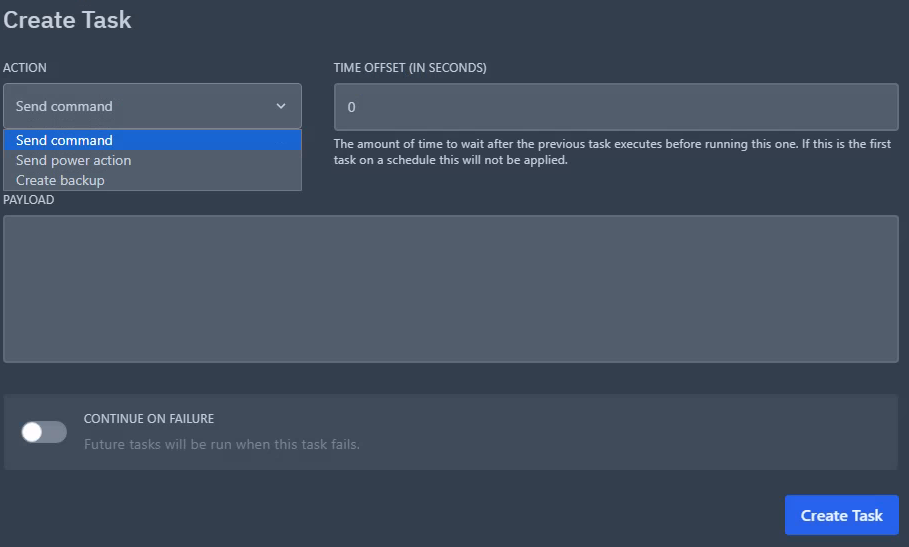 Click "Create Task" in the bottom right. You are now done unless you need to add additional tasks.An example is provided below basically explaining how to setup an announcement for a reboot of a Minecraft server for **60, 30 10** and **5** second broadcasts, then **a restart** command.
For example, I have an MC server that needs rebooting at 1AM but I want to announce in chat that the server is going down in 60 seconds, 30 seconds, 10 seconds and 5 seconds. After these announcements, reboot the server. To do this, I would: - put the first "Action" as **Send Command**... - With the "Time Offset" being 0... - And the "Payload" being **broadcast &e&lReboot in &6&l60 &e&lseconds!** And press "Create Task". I would repeat the same steps for each message, putting the Time Offset as **0, 30, 20, 5**, **5**. If you think about it, you are sending the announcements at **0, 30, 20** and **5** seconds after each other of the previous, and **5** seconds after the previous announcement, you are restarting. It looks like the below:  You can click on "Run Now" in the bottom right to test your schedule and see if it runs successfully. If it runs with no problems, you are good to leave it running and come back to amend later if need be.If you run into an issue where your schedule is stuck on "Processing" with a spinning circle, but not actually doing anything, this is due to a service called Pteroq not running properly. This is responsible for running email sending to subusers or reset password requests, schedule timings and other database related tasks. Let us know and we will connect into your system which is hosting the panel and run **systemctl restart pteroq**.