This is not an extensive list by all means and if the troubleshooting steps below haven't helped you solve the issue, feel free to reach out and we can explain further what they mean.
##### **"Server immediately stopping when started"** Several things can cause this. Mighty irritating as they aren't easy to recognize and solve. - **Start** with checking you are running the right Java version as some plugins will not load and instantly thread death causing the main process on final boot to go "Ah, there was an error at the beginning, this was hugely game breaking, I am deciding to stop the server safely." Normally happens between Java 8 to 11 and Java 16 to 17. Make sure you run the right one and try the others if it won't start. - **Next**, look at your console on start up. Do you have any plugins that are completely dying due to "Zip file closed" or needing a license? There's your issue as these normally tell the server to stop. - **Thirdly**, If you just added some plugins or features - Roll them back. This is probably what is causing it. Sometimes developers add features which require a license check, IP whitelist or outright configuration changes that warn in console to "update/configure" and stop the server thread process. This can also be caused by a protection plugin halting the server process such as AntiBackdoor or you trying to load the MC server on a older version than the world was loaded in, and it instantly halts world loading. - **Still not solved?** Your final step is to follow the "take a backup, plugins removal and add a few at a time" trick. [Follow this information](https://docs.jasmeow.systems/link/71#bkmrk-you-can-join%3A) to walk you through these steps if you are unsure what this means. --- ##### **"...ByteArray with size X is bigger than the allowed X"** ##### **"...Packet X was larger than I expected, found X bytes extra..."** ##### **"IndexoutOfBoundsException: Index X out of bounds for length X"** ##### **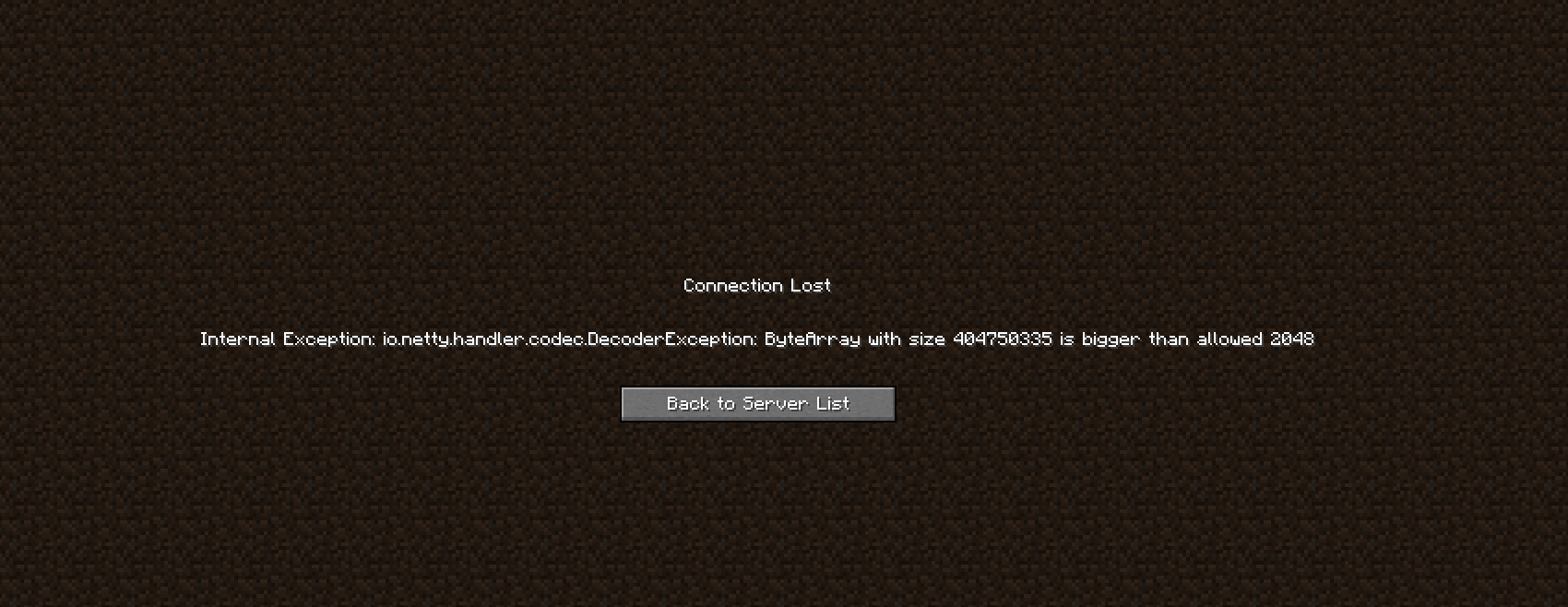** **** 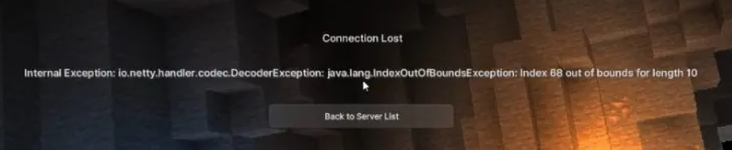 This error is a relatively easy one to solve. In simple terms, this means that you are trying to join your MC world with data that your game does not understand, basically saying "This data is bigger than the allowed number, what is this garbled mess?" Many different plugins, worlds or even your own player data can cause this problem, but most commonly this is caused by: - **Holograms and NPC's** - Anything that a player sees or interacts with can cause this error such as longer than usual hologram names, NPC's with invalid skins/textures, items in the players inventory with invalid characters and weird packets being sent to the player that your own game cannot understand like a crate plugin. - **ViaVersion & Version Parity**: Make sure you are running the latest ViaVersion jar on all your backends or **JUST** the proxy. This includes ViaRewind and ViaBackwards if applicable. You need to **check** and **confirm** that they are updated. Your Hub might be a version out of date but your Survival isn't, stopping players from being able to join properly on different versions, but not effecting you due to different launchers, connection types and other in game changes. The first step is to turn off the server and take a backup. Our recommendation is making 2, one with all of your files and one with just the .jar files as you will be uploading those shortly. You will then want to find all your .jar files in the plugins directory and delete them. Start the server normally and see if you can join. If you can, great, it's not a configuration issue, it's a plugin causing it. **You can join:** - Download your backup and upload 5 plugins at a time to pinpoint which one it is. - Start your server, try to join, works? If so, stop it, add 5 more, repeat the process. - Once you can't join, you've found out that one of those 5 plugins are the culprit. - Stop the server, delete those ones you added and add 1 at a time, starting, joining, testing and stopping each time until you land on the "bingo" moment of finding out which one it is. Yes, this process is tedious and annoying, but in Java, you adding all these plugins, you can't be certain which one it is. **You can't join:** This is probably due either your bukkit.yml, spigot.yml, paper.yml or server.properties having incorrect information, or the proxy and its plugins causing the issue, if applicable to your setup. Delete those 4 files and see if you can join after a reboot. Still can't? Head to the proxy and repeat the plugin process as stated above until you pinpoint which one it is.Common plugins which cause this issue which we have found over the years: **BungeeResourcepacks.jar** - Found on the proxy, this plugin breaks player data by sending unnecessary packets if you don't have a resource pack setup causing an immediate kick. **Caused by:** The 1.20.2 update breaking texture packs by their remapping changes.
--- ##### **"...EncoderException: Cannot get ID for packet class..."** 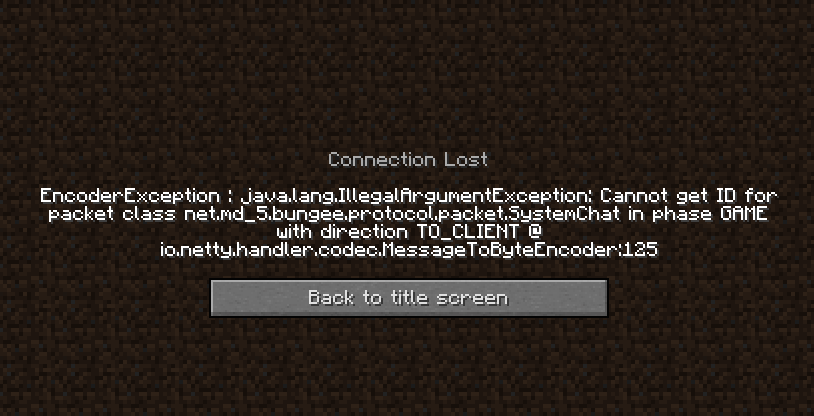 This can be caused by a faulty ViaVersion update, its folder cache or you have online mode set incorrectly on the proxy. - Update your ViaVersion, ViaBackwards and ViaRewind plugin to the latest update if you have them installed on the servers they need to be updated on, such as just the proxy or just the backend servers. - Go to the plugins folder and delete these three folders from that directory. Rebooting will regenerate them and get you connected again with no problems. - Go to your proxy configuration file and set the online-mode to false instead of true. Only do this if you are running a offline mode network and have a plugin like AuthMe installed. **Do not do this without talking to us first.** --- ##### **"Kick whilst connecting to x: Unknown data... forget to enable?"** 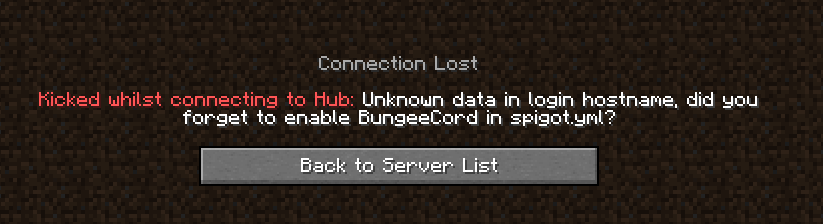 This means that you need to go into **spigot.yml** on the server that is showing this message and update the line **bungeecord: false** to **bungeecord: true**.  --- ##### **"Server is online mode!"** **** Go into **server.properties** on the server that is showing this message and update the line **online-mode=true** to **online-mode=false**.  --- ##### **"Unexpected packet received during login process!"**  This is caused by **proxy-protocol** or **haproxy-protocol** being set to **false** instead of **true** in: - **BungeeCord** - config.yml  - **Velocity** - velocity.toml  This error can also be caused by the Velocity **forwarding.secret** not being set properly in: - For 1.19 servers and above, go to the config folder > paper-global.yml. - For anything below, find the paper.yml in the root directory. 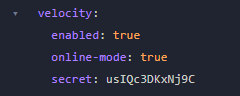 --- ##### **"Exception in thread "main"... "Server x (priority x) is not defined"**  Simple one to solve. In BungeeCord and Velocity, you have the servers which players can join and the priority in which they join if one is down, like the below: 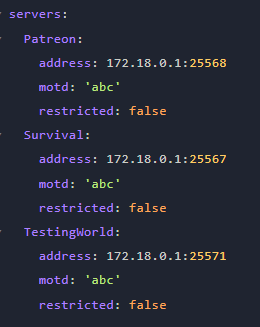  Now, as we can see, Survival will be the first server players join. If Survival is down or restarting, players will be forced over to Patreon in this example, unless it's whitelisted or permission blocked from joining. Now, If I type "lobby" into the priorities and that **server name** isn't specified in the **servers:** list, you will get this error. It's basically saying "Server **X** does not exist, why are you defining it as a priority as I can't send players there... I don't even know what **X** is!" You are telling the config file what each server is, what IP it has and what the MOTD is. If it is missing from servers, **don't specify it** in the **priorities**. --- ##### **"Internal Exception: ...DecoderException:.... Cannot Invoke..."** 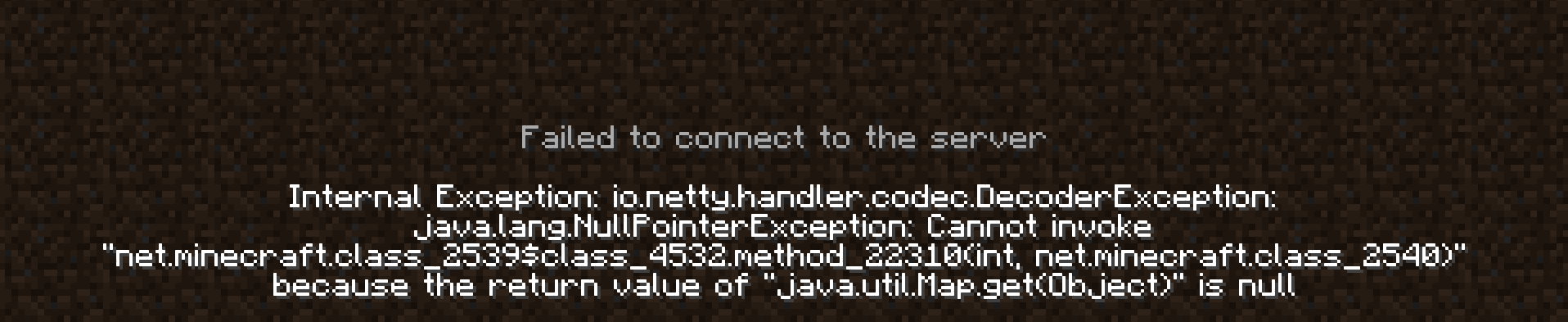 This is applicable to servers with proxy protocol turned on or off and the connection settings being incorrectly configured when using Anti-DDoS providers such as TCPShield. If you are running a Fabric modded server using TCPShield with the TCPShield fork on Github - [https://github.com/totorewa/tcpshield-fabric](https://github.com/totorewa/tcpshield-fabric "https://github.com/totorewa/tcpshield-fabric") - You will need to make sure that the proxy protocol toggle is **turned off** as it acts exactly like the plugin. You have the toggle off when the plugins installed, so by process of elimination, the .jar of the TCPShield's fabric mod acts in the same manner. 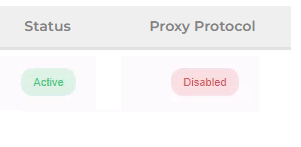 --- ##### **"java.lang.RuntimeException: Unable to access address of buffer"** We would recommend checking you are running the right Java version before diagnosing further. In Pterodactyl, check the dropdown in the "Startup" tab and check the "Docker Image". **RuntimeException** is normally caused by Java failing to run a class which doesn't exist in earlier/later versions of Java. 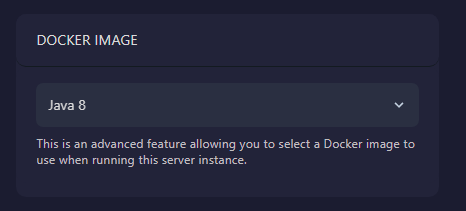 --- ##### **"Internal Exception: ... DecoderException.... legacy:fml|hs"**  This is caused by a plugin on your proxy kicking players who are loading clients with Forge or Fabric mods. If you don't have your own proxy jar coded or your own plugin for the proxy handling player joins, please see some of the below solutions: - We've found out that on **BungeeCord**, this is caused by the plugin **BetterUtils.jar**. This can also be named **BungeeUtils.jar** and this has been made by Golfing8, the WineSpigot developer. For the configuration, it makes a folder called "BetterUtils" in your proxy plugins folder. You can stop this from occurring by disabling the line **Forge > get-mods-from-players** line.  --- ##### **"A backend server isn't reachable but it's in the config.yml"** This one presumes that: - The firewall has been checked and the ports are open internally for that servers port. - The proxy has been properly setup with the right settings to send them there. - The backend server has been set to bungeecord: true and online-mode: false. - You have whitelist turned off or you have whitelisted yourself before joining. Ok, this is a super annoying issue by BungeeCord (Or any alternative to this such as FlameCord) and for some reason the proxy is **super incompetent** in actually telling you the fault is your **player version.** An example would be: - BungeeCord Proxy, a Hub & a Factions server. The proxy does not have the Via plugins. - The Hub server has ViaVersion, ViaBackwards or ViaRewind and the server version is 1.8. - The Factions server does not have any of the Via plugins and the server version is 1.8. Try and do **/server Factions**. See how it shows you typing the command in the Proxy console but the Hub and Factions console showing nothing? Yep, welcome to the absolute stupidity of BungeeCord. It doesn't detect and catch a players version is the issue. Turns out, this is an actual feature to disable logging like this... **helpful**. 🤦♀️ You can see below, nothing in the consoles.  Upload the right **Via**Versions, and you'll be able to join! Typical! This is also **SUPER** annoying if you are on Factions and trying to get to Hub, and let's say the Hub doesn't have the **Via** plugins... you get the stupidly idiotic message "You're already connected to this server!"  The error means you are on **Factions**, **trying to reconnect** to **Factions** because the **Hub** isn't **accessible**. What you want to do is actually go from **Factions** and get to the **Hub**. There's no error for this, see below: **Proxy?** No error:  **Hub?** Just chilling, no error:  **NOT HELPFUL.** Hopefully this clears up any confusion. Velocity mitigates this issue by telling you where you are trying to travel from and to in the proxies console. If you see yourself instantly connecting to **Factions** on join and doing **/server Hub** doesn't send you there or the proxy never shows "Hub has connected", this means you are stuck on Factions and need **Via** on the Hub.  --- ##### **"Incorrectly configured address... AnnotatedConnectException"****Running WineSpigot?** Before you jump to conclusions thinking it is the firewall and saying "I can't join but someone else can!" **HALT**. Join on 1.8, it will fix it immediately. It's **not** your firewall, it's **not** your configuration. It's extremely misleading.
**Step 1** - Ask the team to check firewall and make sure the port is open. Our normal installations and migrations include the ports 25566:25580 open internally ready to be connected to. If you get timed out when trying to reach other ones like 25581, we need to update your interface rules. **Step 2** - Check you've properly configured the server in config.yml for BungeeCord or config.toml for Velocity. --- ##### **"\[TAB\] \[WARN\] ViaVersion returned unknown protocol version ###."** Update the TAB plugin. That's literally it. It means TAB can't read the version the player is joining on and kicks them.  # Access SFTP Via FileZilla With IP Not Hostname ##### Please follow this guide completely! Do **not** skip parts as it includes important explanations as to why you cannot access SFTP. We will not help you until you have provided information back to us. This proves to us that you actually read the guide, not skipping ahead. To access SFTP either by root level or by the Pterodactyl servers, you will need your IP address whitelisted on the system you are trying to connect to. ##### **Retrieving** **your IP Address** Firstly, Google "What's My IP" and get the IPv4 address. Put this into your **💬-comms-chat** so we can add it to your system(s). 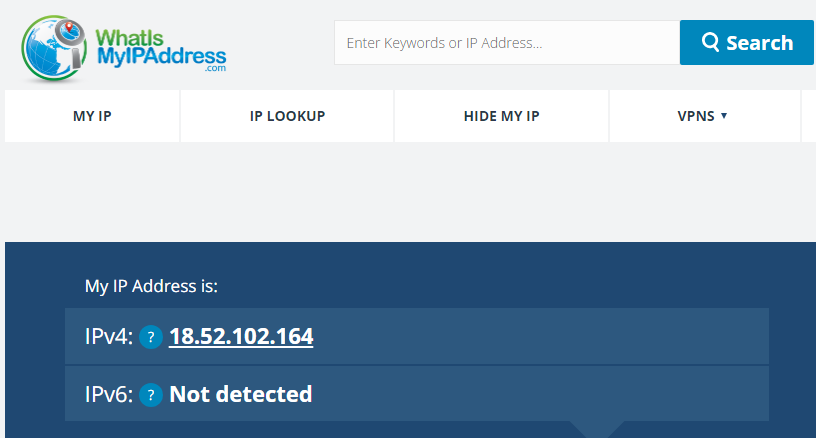 ##### **Panel SFTP Access** Go to the server you need to access via SFTP and go to the "Settings" tab.  For the server address, do not use the hostname which is included on the panel as this will not allow you to connect via SFTP. The reason for this is because services such as FTP and Minecraft aren't smart enough to ask CloudFlare "Please give me the real IP address" when you have the orange proxy cloud on and not DNS only. Websites know how to do this, hence you can protect their backend IP, but this is why Minecraft needs DDoS protection such as TCP Shield and SFTP is only given to privileged users as they need the direct IP to connect. Additionally, you can not use this button on the Settings tab as this will open WinSCP and use the wrong connection, using the hostname and not the IP address. If you wish to use WinSCP for features FileZilla doesn't have like darkmode, enter the details manually into the client.  
You will need the dedicated IP of the node you want to connect to which we have pinned in **💬-comms-chat**. If you have multiple dedicated systems, you need to look at which node your server is on in the "Debug Information" section.  For our example, our dedicated system is 17.92.173.240. Since pterodactyl is port 2022 for SFTP, we will use **sftp://17.92.173.240:2022** that in the host field. 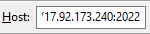When putting in the IP and port into the Host field on FileZilla, make sure you do **sftp://** at the beginning so it knows to use the right protocol.
Username is taken from the panel under the incorrect server address and the password is your login to the panel. Now press "Quickconnect". If you time out, that's because your IP hasn't been allowed by us yet. If you get "Please select proper protocol", you need to make sure you have "sftp://" at the beginning of your host.  You are now connected on the right hand side. ##### **Root SFTP Access** The same steps need to be followed for accessing SFTP on the root level, getting your IP whitelisted after giving it to us. Once that's done, connect using your SSH port instead of 2022. For example, **sftp://17.92.173.240:1337** as the host. The username will be "root" and the password will be given to you. # Access SSH Using MobaXTerm Or Alternative Client On IP Whitelist To access SSH onto your dedicated system, you will need your IP address whitelisted on the system you are trying to connect to. In some circumstances, you will need a OpenVPN client configuration setup if you have a dynamic IP, but this is for advanced users. If you have already got your IP whitelisted from accessing SFTP, then you can skip this first step. Firstly, Google "What's My IP" and get the IPv4 address. Put this into your **💬-comms-chat** so we can add it to your system(s). [](https://docs.jasmeow.systems/uploads/images/gallery/2023-09/xWocljoapJZHfZDC-image.png)Do **NOT** provide SSH credentials, keys or other sensitive data to your support staff members, developers or administrators on your Minecraft network, managers in your business or community leaders. A malicious user can simply run one single command to wipe all data off your VPS or dedicated machine in a matter of seconds with no recovery. Additionally, please don't grant them admin access on your control panel interfaces unless they have been thoroughly checked by multiple people such as management. **You have been warned.**
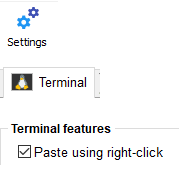
Next, you may already have an SSH client downloaded, but if not, head here to download MobaXTerm, a free application which is really powerful with SFTP browsing on the left hand side. [https://mobaxterm.mobatek.net/download-home-edition.html](https://mobaxterm.mobatek.net/download-home-edition.html) Extract the ZIP and double click the exe installer. If you don't extract the ZIP, it will fail to install with a warning, so make sure you do this. Open it up once complete and it should look like the below.  In the top left, click "Session".  Choose "SSH" top left.  In the "Remote host" box, put in the **public IP address** of the dedicated system. For VPN clients, **ask what IP to use.**  Tick the "Specify username" box and put "root" in it.  In the "Port" box, put in the port given to you.  Along the tabbed bar in the middle of the screen, you have "Bookmark settings". You can edit the "Session name" which appears along the left of "User sessions", the "Session icon" (Fancy :D) and change the tab color. Press "OK" when done.    You will now enter the SSH terminal. Copy the password for the root user onto your clipboard then go back to MobaXTerm and right click to paste.  When the popup appears stating "Actions of mouse buttons", press the bottom radio button that states "Paste" and click "OK". If you accidentally click off it, go "Settings" along the top bar, "Terminal" tab then turn on the tick box in the middle left stating "Paste using right-click". Press "OK" and a box will appear stating you will need to reconnect your session by double clicking it on the left hand side.
[ ](https://docs.jasmeow.systems/uploads/images/gallery/2023-09/9fm4PZ2aKCw8m96X-image.png) There is a possibility you will see the "MobaXTerm paste confirmation" window. Press "Do not show this message again" then press "OK". It's dependent on many factors so you might not see it at all.  **Right click once, then press enter.** This will allow you in. If it fails and says:  Right click again **once** then press enter. You might of done it too many times by accident getting past the other two screens or you might even have something else on the clipboard. Paste in notepad normally and check. Don't get frustrated and if it still doesn't work, ask! When you press enter, you will be prompted to save the password. You can click Yes or No on this option with "Do not show..." tick box ticked in the bottom left.  This screen will appear if you press Yes. Basically make a password up that you can remember so you can access your sessions later. Keep the top radio button selected unless you are security conscious.  You are now into your SSH terminal.  ##### **Additional Information** **Made a mistake?** You can right click > Edit session on the session that was just made. **Note:** You need to press "OK" then double click the user session again to use the new details if you changed them, like the SSH port or IP address.
**Closing MobaXTerm?** When coming out of the SSH terminal by clicking X along the bookmark bar or X in the top right, please make sure you click on "Do not ask me again" in the bottom left. Press Yes afterwards.  # Accessing Your System Using OpenVPN Due To Dynamic IP You or some of your team members might have home internet where the IP changes repeatedly after a few hours or days, causing a headache where you have to ask us to whitelist your home IP each time to access SFTP or SSH. Please follow this guide to install OpenVPN Community, import your VPN profile, connect then open MobaXTerm/FileZilla. First off, use one of the following taken from OpenVPN's site: - [https://swupdate.openvpn.org/community/releases/OpenVPN-2.6.6-I001-amd64.msi](https://swupdate.openvpn.org/community/releases/OpenVPN-2.6.6-I001-amd64.msi) - [https://openvpn.net/downloads/openvpn-connect-v3-macos.dmg](https://openvpn.net/downloads/openvpn-connect-v3-macos.dmg) ***Easter Egg** - Go to [https://swupdate.openvpn.org/community/](https://swupdate.openvpn.org/community/) for it to say "no" to you.* Install the software.   Ignore the error and press OK.This guide was written for Windows but the MacOS steps are relatively similar.
 Grab your VPN file from your **💬-comms-chat** or from whoever passed it onto you and download it. Double click it and it will ask to import. Press Yes. You should see a notification stating it was successful. In the system tray, you will see a little computer icon with a padlock on it. Right click it > Connect.    You should now see the screen turn green.  Drag the icon onto your taskbar to make it easier to see. Now that you are connected, the host is **10.8.0.1** so if you use a connection type like SSH or SFTP, use this IP instead of the public IP. For example: 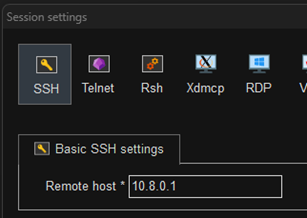 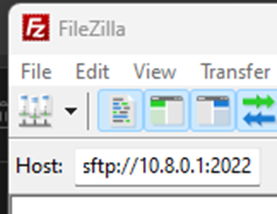 Any problems, speak to one of the team. # Private Bandwdith, vRacks, vSwitches & Internal Networking Many hosting providers such as OVH and Hetzner have features which will enable their dedicated systems to communicate to each other internally without reaching the outside internet. This has multiple benefits for running a large MC networks or businesses, such as: - Database engines can be spread across multiple systems so they can all reach one main host. This is very beneficial and saves computing resources and delays in relay responses. - MC networks can benefit by being protected from ports being open externally, mitigating the risk of Proxy Spoofing from malicious players and allow servers to be reached internally. Hosts call these different names, such as OVH call them vRacks and Hetzner vSwitches, but they all serve the same purpose and complete the same task. You can't use two providers to manage your MC network as they won't be protected internally as they won't have the same capability. # Switching Proxy Types - BungeeCord & Velocity To start with, switching your proxy version should be done in a controlled environment which is not in current production, such as pre-release before your network opens or on a development network. Switching from *Bungee* to *Velo* and vice versa can be difficult and irritating to understand at first, but they basically work fundamentally the same, they are a proxy manager, sending players to the server they request. Firstly, take a backup of your current proxy and download it. Store it on your PC and open the archive so you can alt tab back to it when you need to read a configuration file.**Before we start,** this might solve your issue if you have come from not being able to join after your switch to Velocity. The most annoying problem that has existed for many years is Velocity for some bizarre reason defaults to **25577** instead of the normal **25565**. It makes complete no sense as you wouldn't be running dual proxy on the same port, and that's not even possible on Pterodactyl panel anyway? Rant over. We really don't understand this stupidity. Anyway, to solve it:  Open **velocity.toml** and find the **bind =** line. Change it to **:25565**. Done. Simple as that. As they say, always read the documentation, the console logs or the application reports first.
**Three major differences should be taken into consideration though:** 1. When switching to Velocity, you will see an error like the below if you are starting your server with BungeeCord plugins installed in the plugins folder. You need to go and download the Velocity alternatives which can be found on the relevant websites you obtained the plugin from. For example, on GeyserMC's site, you have Velocity and BungeeCord tabs.   2. You need to take into consideration that both types of proxy use different file types. - **BungeeCord:** YAML file type - colons (**:**), apostrophes (**'**) and code bracket (**{}**) symbols. - **Velocity:** TOML file type - Commas (**,**) brackets (**\[\]**) and equals (**=**) symbols. When you configure your proxies, make sure you YAML/TOML validate your configurations, using websites such as [https://www.yamllint.com/](https://www.yamllint.com/) and [https://www.toml-lint.com/](https://www.toml-lint.com/). 3. Plugins will loose **ALL** their configuration due to the different file types **AND** the folder names will change their casing to denote a different proxy type. Notice how Velocity always names the folders in lowercase where BungeeCord keeps them uppercase? It's for a reason, to make it easier to reference back and not corrupt any of your old data.  # Creating A TCP Shield Account For The Free Plan If you are wanting to protect your public IP for your MC network from your dedicated system you purchased from OVH for example, but don't need to pay for the bedrock support feature or cannot afford one of the higher plans, you can sign up to TCP Shield using their free plan. Head over to [https://panel.tcpshield.com/register](https://panel.tcpshield.com/register) and fill out the details. If you are a Jasmeow.Systems client, please provide the details of the login you just made, we will do the rest.  Click "Add network" and give it an appropriate name:  On the left hand side, find "Backends" and on the right side, choose "+ Add Set". 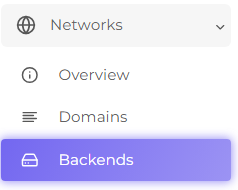 [](https://docs.jasmeow.systems/uploads/images/gallery/2023-12/uZeZDo341wbnB1lJ-image.png) Fill in the relevant details, giving it a name such as "Java" and then putting in the public IP + the port, as shown below, choosing "Save" when done.Do **NOT** toggle Proxy Protocol if you are running a standard plain vanilla MC or modded forge server. You will only want to toggle this for standalone Paper servers **OR** proxy based configurations such as Velocity or BungeeCord.
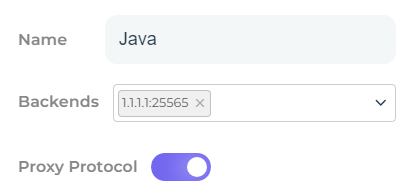  On the left hand side, click "Domains" and in "Step 1", copy the CNAME.    Pop into your DNS such as CloudFlare and update any records you wish to have when joining your MC Network, such as **play, mc, join, @** or any alternative you want to add. You can only add **3** on the free plan, so normally I do play, mc and the @ symbol for the root domain.In CloudFlare, turn off the cloud so it is just "DNS only". You will have CF reroute sometimes back and fourth causing periodic player connection problems. Not drops, just unreliability in actually joining.
 Head back to TCP Shield and click "+ Add Domain" in the bottom right.  Fill in the relevant details, such as the Domain and choose the backend set you made earlier, clicking Add when done.Most of the time you should get "Domain Verified" with a tick but sometimes you don't. Click Re-check domain and choose CNAME attempting to forcefully verify it. If the CNAME method doesn't work, go back and click TXT record and copy it, putting it into your DNS like the below: *The host being **@** and the content being the **TXT record** you got from **TCP Shield**.* 
 You can now see it is added and verified. Your final step is to update your MC network configuration. For each one, reboot to apply, no other configuration is required, but remember that you will no longer be able to use the numerical IP to connect and you **have** to use the domain.
**For Velocity:** Head to the **velocity.toml** and scroll all the way to the bottom, updating the line **haproxy-protocol** to **true**.  **For BungeeCord/Waterfall:** Head to **config.yml** and update the line called **proxy\_protocol** to **true**.  **For standalone Paper:** Have just one server but still want to use TCP Shield? You can still do this by going to: - For 1.19 servers and above, go to the config folder > paper-global.yml. - For anything below, find the paper.yml in the root directory. In this yml file, find the line **proxy-protocol** and set it to **true**. 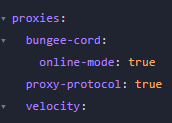Ignore all other lines, it's squished between the two proxy types to add to the confusion! It's not related to either as in YML it's a indentation to the option variable "proxies" but not indented with bungee-cord or velocity.
# My Server Is "Lagging" - Why This Term Doesn't Help Us Take a moment to think about this term. Stating "My server is lagging" or "laggy" doesn't help anybody trying to help you. Use better language than "lag" as that makes you come across as a 10 year old server owner asking how much dedicated RAM is needed for their Minecraft server. Jokes aside, there's two different types of **lag.**You will be ignored if this document has been read through properly and you keep repeating "lag" or "laggy". This doesn't help anyone and you will not receive support until you do your own recon, meaning investigation, first.
**High Ping Lag** High ping is caused by the poor connection of the player to the server or by the server being in a location not suitable for the current player base. Changing location such as moving from the EU parts of the world to the US like Canada and New York will drastically improve "ping" connections. The reason this is called **lag** is due to the players "suttering" around meaning that they are randomly jumping around in place like a teleport on your screen or getting "slingshotted"/"lagged back"/"pulled back" to their original location if their ping is over 300+. Remember that if you are using a service like TCPShield, NeoProtect, Papyrus or other such DDoS provider, they use anycasting to optimise the route the player uses to connect to your server and not jumping around 10+ countries and providers to get to you, as shown by doing a [MTR](https://docs.jasmeow.systems/books/support-articles/page/got-high-pingconnection-issues-the-diagnostic-steps-to-help-us). This issue can be looked into by us and supported as migrating to a new system can be done relatively quickly and only minimal downtime is needed realistically. This is obviously dependent on your size of your servers and network operations.Do not mistake this type of lag for being in game lag as we've seen this many times by upgrading to a different host or location does **nothing** to aid your lag issues. Keep reading to find out more about in game lag and actually finding a solution as to whether it is player "connection" or server "performance".
**In Game Lag** In game lag is caused by many different aspects and features of your server such as many worlds, plugins, players or features thrashing the server performance and "tanking" the TPS to below 20 TPS. As we are aware, Minecraft uses 20 TPS by default to keep up with server actions and is applicable to all server operations at 20 ticks per second, such as redstone, mob AI movements, block interactions, crate key openings and much more. To first work out if your server is lagging, download the plugin Essentials or other plugin like Spark and run /tps. This will give you a simplified notice if the server isn't on 20 TPS. You can then run spark profiles and heap dumps to hopefully share with optimisation specialists to locate the cause of the significant lag on your server.Do not get either of these confused. Do your own diagnosis and find out if you need to ask yourself "Does my server need optimisation rather than changing host?" or "The location in which my server is in is not optimal for my player base."
Remember, both types of lag can cause the same symptoms and issues for players. Locate which one it is first then ask for assistance with either us for high ping lag or other people for in game lag as we are not your developers of your network, we don't know how you put it together and don't want to modify anything to reduce the risk of breaking something. We will not be supporting diagnosing in game lag and we will look in our free time if it is something we are capable of doing. # Got High Ping/Connection Issues? The Diagnostic Steps To Help Us Hello! Having some issues playing on your favorite server due to high ping being over 150ms or connection issues like timing out or falling into the void? Follow the guide below to help us work out where the issue lies. To start with, let's try trace routing our pathing to our DDoS provider, TCP Shield. We will use this as a baseline to diagnose the faulty connection to your home.A traceroute provides a map of how data on the internet travels from its source to its destination. When you connect with a website, the data you get must travel across multiple devices and networks along the way, particularly routers.
Go to [https://sourceforge.net/projects/winmtr/](https://sourceforge.net/projects/winmtr/) and download the WinMTR project. This will be very helpful in working out what the fault is.What we are doing is safe and your antivirus program shouldn't flag anything. As long as you follow the instructions, you won't need to worry about personal data being shared as this is all networking diagnostics which is openly available for anyone to do.
Don't accept the cookies. You don't want to be bothered by tracking and advertisements!  And press Download.  Wait for it to download.  Open the ZIP file which downloads.  Go into these folders. and open the "WinMTR.exe" file. 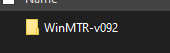   Click "Run" and wait for the below box to appear. If it doesn't, go back and run the x32 bit version of the software and run the WinMTR.exe again.  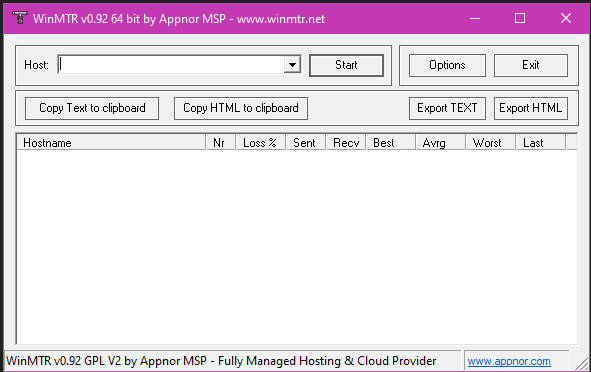 In the box in the top left, you have "Host:", pop in that box with the servers joining domain. For example, "**hypixel.net**", "**play.jasmeow.systems**", etc. 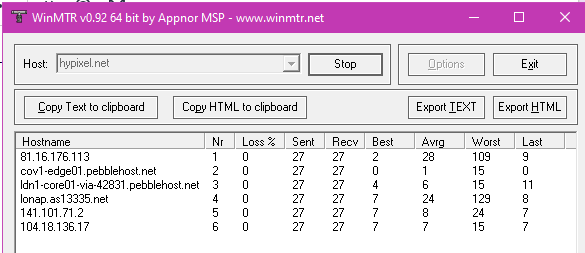 Leave this to run for about a minute or when the *Sent* number reaches about 100. This will help us diagnose and get more information about how you *travel* through the internet and reaching your MC server. Press "Stop" and you will see something similar to the below: 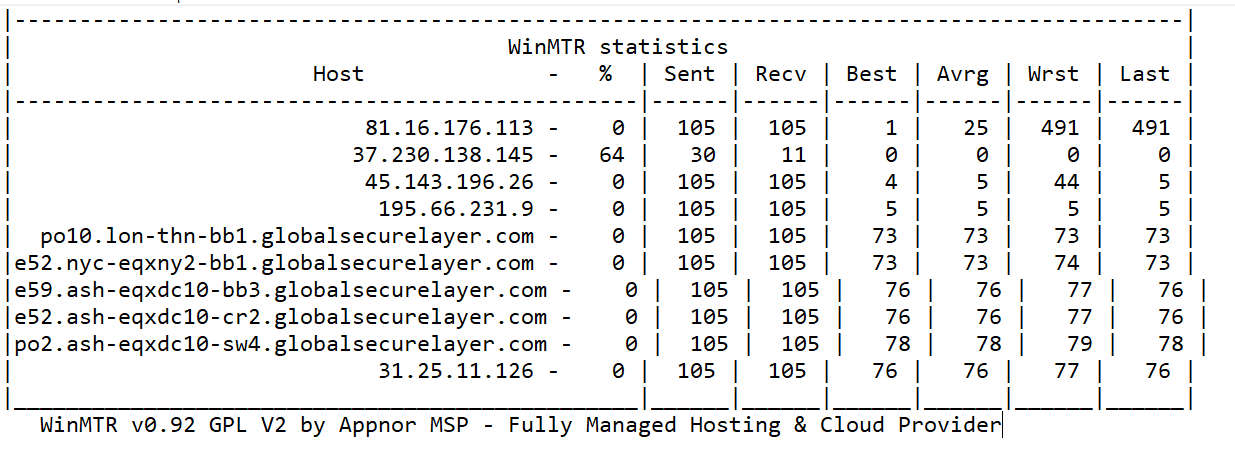 Along the top, there's a button called "Copy Text to clipboard". Click this and paste it into your ticket with the staff member/directly with the Jasmeow.Systems team.  Finally, go to [https://ifconfig.me/](https://ifconfig.me/) and state your IP address. This will be extremely helpful in seeing if a provider is blocking you from accessing the MC network you want to join.  T**his should be all for now. If you need to do anything else, we will let you know.**