Do **NOT** provide SSH credentials, keys or other sensitive data to your support staff members, developers or administrators on your Minecraft network, managers in your business or community leaders. A malicious user can simply run one single command to wipe all data off your VPS or dedicated machine in a matter of seconds with no recovery. Additionally, please don't grant them admin access on your control panel interfaces unless they have been thoroughly checked by multiple people such as management. **You have been warned.**
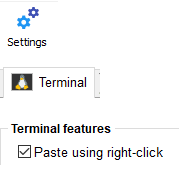
Next, you may already have an SSH client downloaded, but if not, head here to download MobaXTerm, a free application which is really powerful with SFTP browsing on the left hand side. [https://mobaxterm.mobatek.net/download-home-edition.html](https://mobaxterm.mobatek.net/download-home-edition.html) Extract the ZIP and double click the exe installer. If you don't extract the ZIP, it will fail to install with a warning, so make sure you do this. Open it up once complete and it should look like the below.  In the top left, click "Session".  Choose "SSH" top left.  In the "Remote host" box, put in the **public IP address** of the dedicated system. For VPN clients, **ask what IP to use.**  Tick the "Specify username" box and put "root" in it.  In the "Port" box, put in the port given to you.  Along the tabbed bar in the middle of the screen, you have "Bookmark settings". You can edit the "Session name" which appears along the left of "User sessions", the "Session icon" (Fancy :D) and change the tab color. Press "OK" when done.    You will now enter the SSH terminal. Copy the password for the root user onto your clipboard then go back to MobaXTerm and right click to paste.  When the popup appears stating "Actions of mouse buttons", press the bottom radio button that states "Paste" and click "OK". If you accidentally click off it, go "Settings" along the top bar, "Terminal" tab then turn on the tick box in the middle left stating "Paste using right-click". Press "OK" and a box will appear stating you will need to reconnect your session by double clicking it on the left hand side.
[ ](https://docs.jasmeow.systems/uploads/images/gallery/2023-09/9fm4PZ2aKCw8m96X-image.png) There is a possibility you will see the "MobaXTerm paste confirmation" window. Press "Do not show this message again" then press "OK". It's dependent on many factors so you might not see it at all.  **Right click once, then press enter.** This will allow you in. If it fails and says:  Right click again **once** then press enter. You might of done it too many times by accident getting past the other two screens or you might even have something else on the clipboard. Paste in notepad normally and check. Don't get frustrated and if it still doesn't work, ask! When you press enter, you will be prompted to save the password. You can click Yes or No on this option with "Do not show..." tick box ticked in the bottom left.  This screen will appear if you press Yes. Basically make a password up that you can remember so you can access your sessions later. Keep the top radio button selected unless you are security conscious.  You are now into your SSH terminal.  ##### **Additional Information** **Made a mistake?** You can right click > Edit session on the session that was just made. **Note:** You need to press "OK" then double click the user session again to use the new details if you changed them, like the SSH port or IP address.
**Closing MobaXTerm?** When coming out of the SSH terminal by clicking X along the bookmark bar or X in the top right, please make sure you click on "Do not ask me again" in the bottom left. Press Yes afterwards. 